Installation Crisis

Hi, I'm a new Clo 3D user and i cannot figure out how to open the software and start learning. I have already downloaded the Clo 3D Standalone Online Authorization software, but cannot figure out how to get the program running. I have also searched for a customer service phone number, but there doesn't seem to be one listed on the site. Please help!
-
Hi there!
When you download the installer the next steps are as follows:
PC: Locate the installer (likely in your downloads folder), and double click on it to open. From there, the program installation will begin. Click through all the options, and the program will install. When you launch CLO, you will sign in with the User ID and Password you created on the website. If you forgot it and need to reset it, you can do that on the CLO website as well.
MAC: The installer will show you a pop up on the screen with the CLO Logo and your application folder. You'll need to drag & drop the CLO icon into your applications folder. Then it will be installed. From there, you will need to open CLO from the Applications folder (not from the installer icon). And login normally as above.
To begin learning - check out our Lessons Section, as well as the Tutorials on our YouTube Channel! There are also helpful written resources in the Manual, and in the Resources Section of the Lessons Page.
I hope this is helpful! Happy CLO-ing!
Amy0 -
Hi Akracht. In case you are not a self-learner, I can be of assistance too. I use CLO3D everyday as a freelancer. In case you are interested in a more in-depth or personalized training contact me at pablo.quintana@bicher.mx
P
0 -
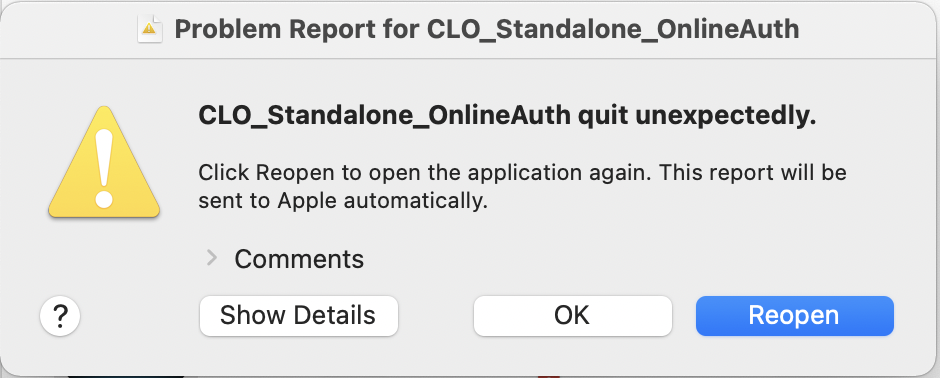
Anyone else receiving this during installation? I've gone through the privacy settings to unlock. Authentication doesn't seem to be the issue... I've gone through this process a couple times now. Any advice?
 0
0 -
Hi rcfarrell. May we ask what mac OS are you currently on? If you are on an older version it is recommended to update to the latest version
0
评论