Texture repeat

Hello,
i want to us a photo as texture.
If i apply the texture, the photo is shown in 4 tiles.
How can i remove the tiles so that the photo covers the pattern?
Best Regards,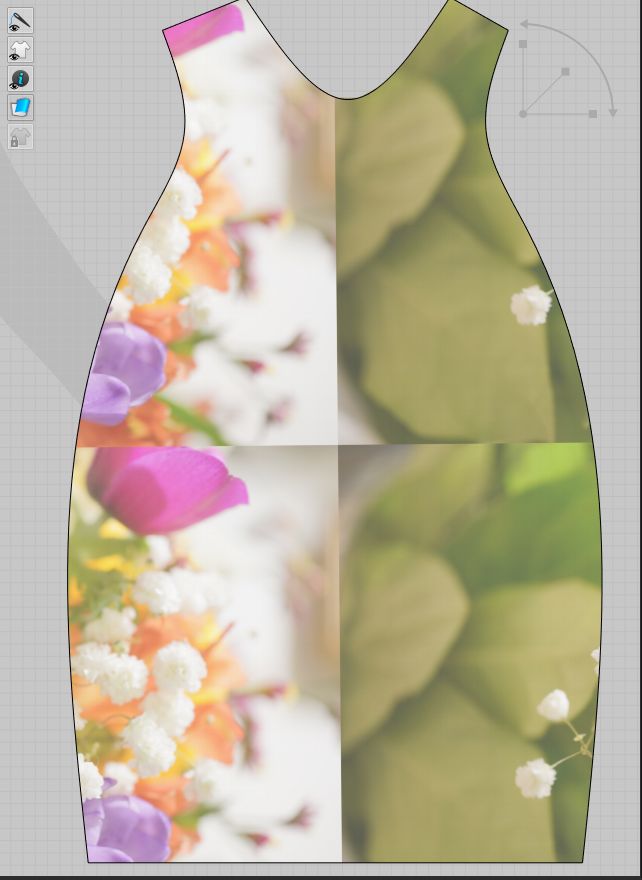
Mikika
-
Hi office, to solve this you can simply select the Edit Texture (3D) Tool and click on your pattern in 3D. This will activate your Gizmo in the top right corner in your 3D window and allows you to scale the picture. Then you can click and drag to change the visible section. Please also check this LINK about the Edit Texture Tool.
0 -
Thank you for the quick response!
The Gizmo is disabled (see screenshot)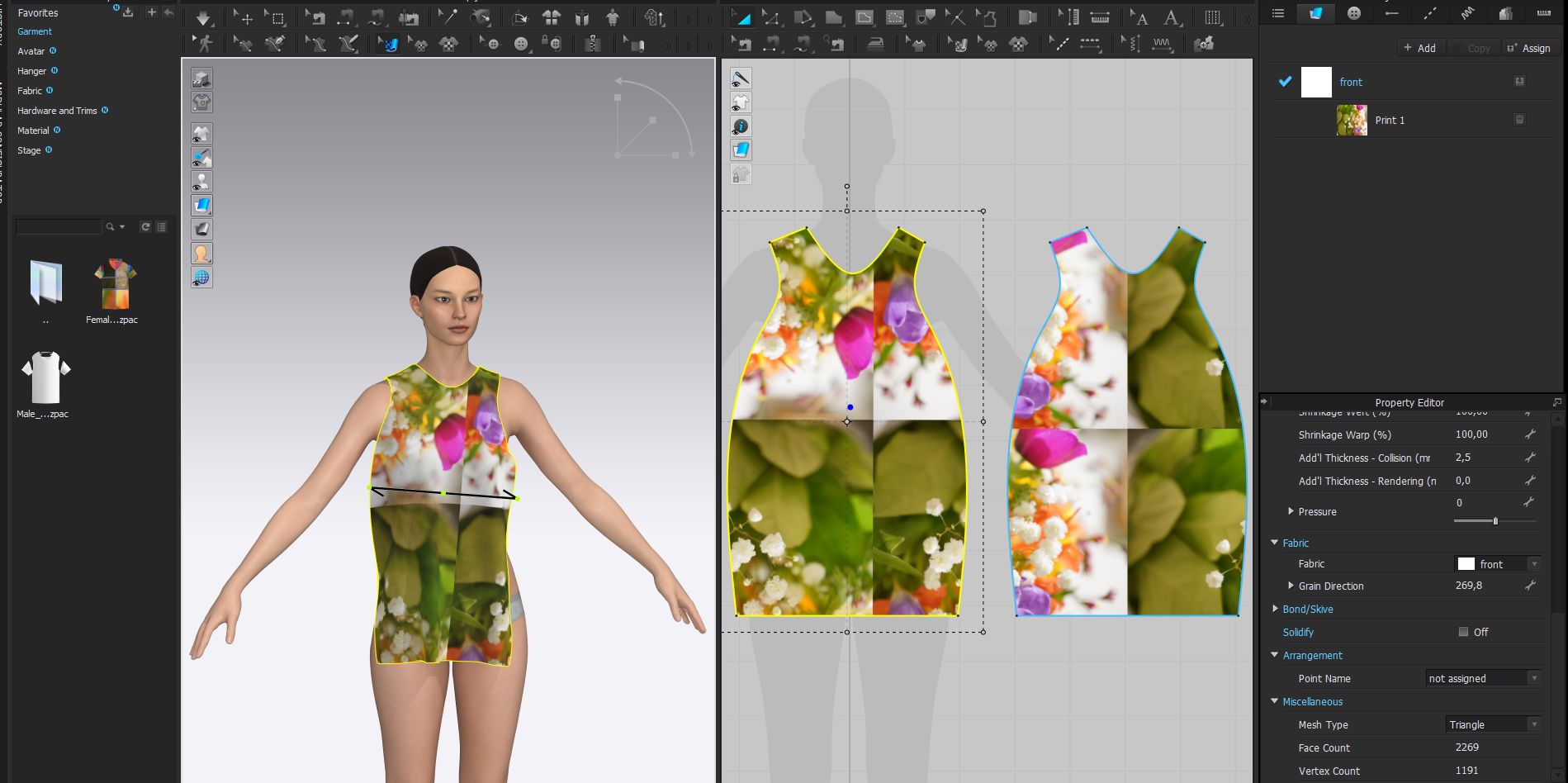 , how can i enable the gizmo?0
 -
Hi office, I see what you mean. Thhis is happening because you added your picture as a print and not as a texture. So please delete the print on your fabric as shown in the screenshot.
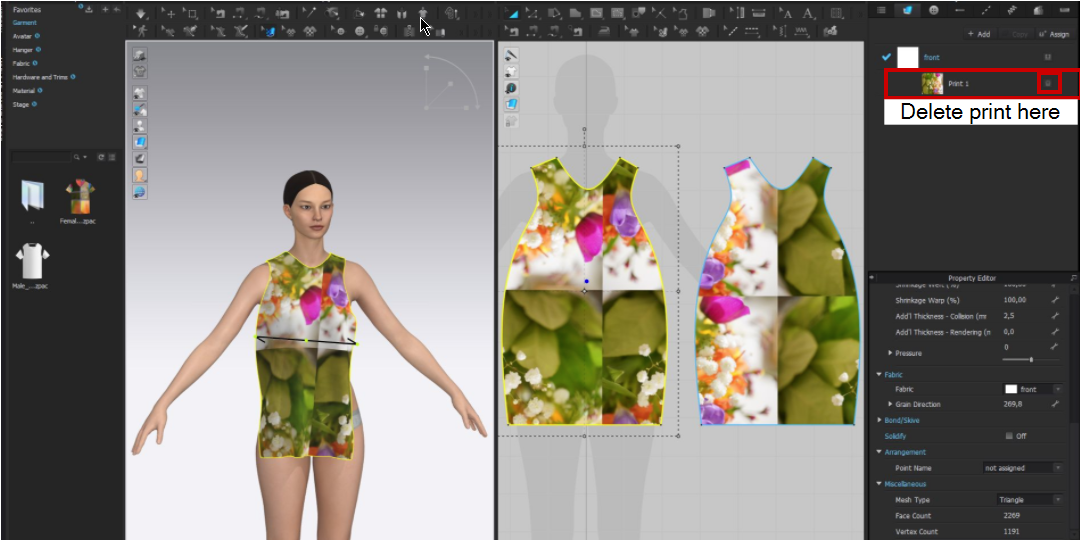
And then add the picture as a texture to your fabric. So link the folder that contains the picture to your library and then you can drag and drop it from the library into the texture field of your fabric. Then you will be able to use the Edit Texture Tool.

This LINK also explains how to add a texture.
I hope this will work for you!
0
댓글