clo so slow. + My computer assets

window i7-4790
ram 16gb
system 6b bt
graphic card : rtx 2060 6gb (ZOTAC GAMING)
display 2560x1440
I had to buy a new graphic card and a monitor to fit this program.
But this still works so SLOW even adjusting the length of my single shirt.
-
Hi yseojin111,
I would recommend you to check if the graphics driver is installed in your system and the program is running with the high performance graphics card. You can check that by going in the NVIDIA control panel.
Let us know if that works.
1 -
yseojin111 you should be okay with this specification, check it's not an OS or CPU priority issue with windows. If you are running windows you can change the priority of the CLO3D app to run ahead of other apps you may have open. Definitely check out your nvidea control panel as stated above - but most of all don't panic, you will get there it's maybe just the software setup as your hardware is an okay spec.
1 -
yseojin111 there is no reason for your computer to be slow with those specs unless something is not correctly configured or you are trying to adjust the length of your skirt at particle distances of 5 mm or less with CPU simulation.
Adjusting basic shapes like the length of a skirt should be done at 10 mm or more and when your basic assembly is ready you can start bringing the particle distance down.
We are just guessing as you do not provide more info about what is slow and when.
1 -
It's a software thing, that is no guess , and you only needed to indicate it's surprisingly slow .... as you stated, that is enough of a diagnosis to know something is obviously wrong - it's very likely your software (95%) setup and not your hardware. Unless you left the graphic card unplugged and in it's box , it's a good card and enough to speed you through work with CLO3D.
As a checklist > look at your nvidea control panel, your graphic-card drivers are up to date, that the OS system (assuming windows) is set so CLO3D has priority over other software (if you run background tasks eg: automated backups, batch rendering, etc), and that CPU affinity is also set for optimum with the OS when using CLO3D CPU cores > and that CLO3D is set to use the designated graphics card [A] and optimal number of CPU cores [B] is also set in the fashion software > and finally make sure in CLO3D you use the right simulation mode (GPU for fast work-dev when sewing and basic assembly and then CPU simulation for the final beauty drape for creasing detail) > work at the recommended particle distance of 20mm for general assembly and then 5mm for the final beauty pass drape. If you follow those simple rules you should be working at a good speed without problems. If any one of those points throws up a problem - ask a question and we can perhaps walk you through them.
All hardware can be checked independently from the software (eg: nvidea control panel) so get to know how that aspect of your graphics card works. There is no guessing here > just cold hard facts on what to look into so you get your setup working well.
Below when you change the simulation mode for the hardware [A] the simulation properties and the speed of simulation collision will change according to that drop down mode [A] below > Fast (GPU) > Normal (Default CPU) slowish > Fitting (Accurate fabric ) CPU, slowest. NOTE: you need to set your CPU number to reflect the number of CPU cores for your chipset. You can see this from your operating system summary of your hardware - which should also indicate if your graphics card is working okay.
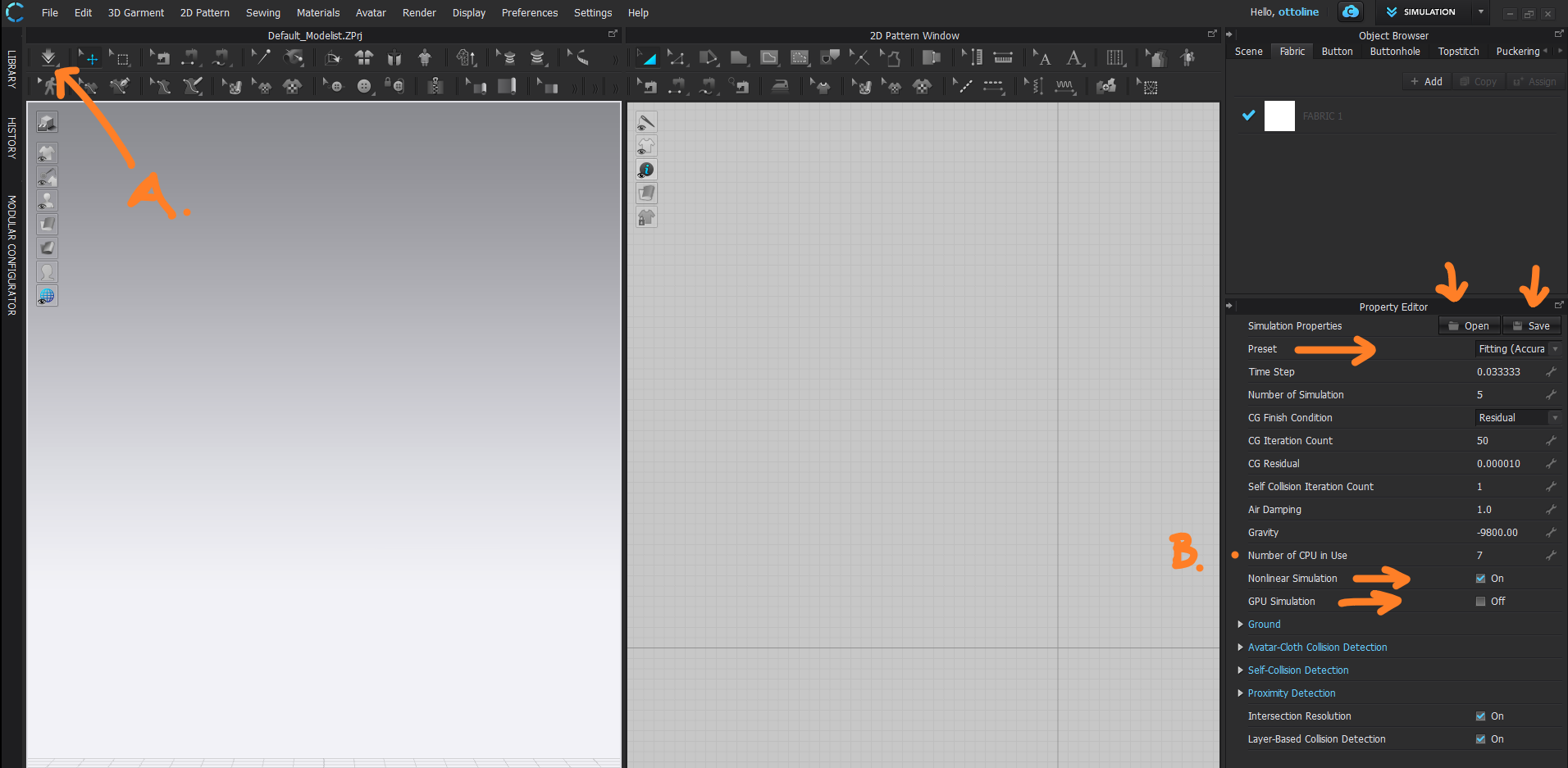
One important point to note > if you update CLO3D or overwrite (reinstall) the software you need to make sure in the default simulation properties folder for simulation presets you don't have copies of these settings > you can open these up from the open button that will take you to that default folder. There should only be one copy for each simulation property mode in that folder (4 files in total) if all that checks out you should be good to go.
1 -
I've read all the comments above. It helped me a lot considering my situation, and I got to a conclusion to share.
Before that, I want to thank you for the time and dedication to my problem as one of the user of CLO.
I was a bit frustrated with my situation that didn't reach my ambition for 3D fashion modeling.
Now, I got the answer. And I hope other users in the future solve the same situation as me.
As the comments mentioned, 'there is no reason for my computer to be slow with those specs'.
Answer: This ONE project file was not working well at clo.. others were not that bad.
So Erase, forget about that problematic project file. Restart another one from the beginning.
OR open windows task manager - process - right click CLO - set priority to High.
I just opened the file and drag to change the length of my skirt.
It made the program POWER OFF, or at least take too long to progress.
1
댓글