How do I access the other ASTM standard Avatars?

My clo3d opens, It has all of these avatar files (See photo) yet they wont open. What am I doing wrong here? Do they come with my clo3d purchase? or must I buy them separately?

-
Note : How you curate these is ultimately up to you. You can still drag and drop all the standard CLO3D avatars into your workflow in a few seconds - it is quick, simple to do and efficient. Adjusting an avatars size is perhaps the most time consuming aspect, so start with an avatar close to size you intend to customize away from - is my advice.
STEP 1: First you need to ensure you have downloaded all the avatar data files into the library. Models etc. If it is Blue with an 'N' in the library that indicates you need to additionally download that item or folder to your computer (so that all data is there and not in the cloud).
STEP 2: Select your character from the folder options > drag and drop avatar 'base' eg: Fei Fei into the 3D window
STEP3: Drag and drop the size file onto the 'base' 3D avatar character in the 3D window and it should change size and a set of tape measures should now show.
STEP 4: Drag and drop the pose file onto the sized character if you need to change away from the standard 'A' pose
STEP 5: To print off measurement table save > open the avatar editor > measurements > save csv file output > open in excel
 0
0 -
Hi Stephanie Holtz,
The reason you are unable to access these ASTM size files are because whenever there is any update, you will notice a small blue 'N' beside the upload button in the library.
This means that there is a new update, you can click on this upload button and update your library. Once you have done this you will be able to access it. I hope this helps with your query.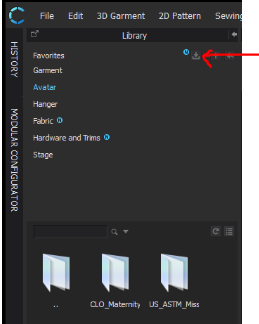 0
0 -
erm same question really - whenever I click on the library avatar size that I want it says ' it doesn't have a matching size'. I thought this program came preloaded with a set of usa sizes? I clicked the download button and the blue line appeared indicating it was downloading - but it has taken at least an hour and hasn't finished downloading the last millimeter. I noticed the adobe symbol in the top right corner was greyed out - clicked and it said something about not connecting.
Is the fact that adobe isn't connecting the reason clo 3d isn't allowing me to use its size avatars?
0 -
Hi fionaandjulie. You are correct that CLO comes with ASTM sizing for all CLO avatars. I have a few questions below that might help me to answer your question more effictively.
When adjusting the avatar size are you using CLO avatars?
If downloading is not working have you tried restarting CLO? Please also check your internet connection. Depending on how many updates CLO needs to download it should not take more than a few minutes
You mention an "Adobe symbol". Are are speaking about the CLO-set button? Looks Like a cloud with a C. This is to upload the the CLO-set cloud for file sharing, but has nothing to do with Adobe.
0 -
Dependent on your connection type (eg: local or server based - administrative privileges) or any blocking antivirus software, you might need to double check you have a stable internet connection, you should just be able to refresh the down load button and they should take 1-2 minutes to update the size files. Any longer than that might be due to a internet or IP error your side.
A fallback position can be to manually look inside your old CLO3D version folder > program install > (and use the older local size files on your hard disk) , these get left as you upgrade installs but should be okay until you rectify the update procedure, they most likely haven't changed between versions.
0
Comments