Problems with importing scanned body

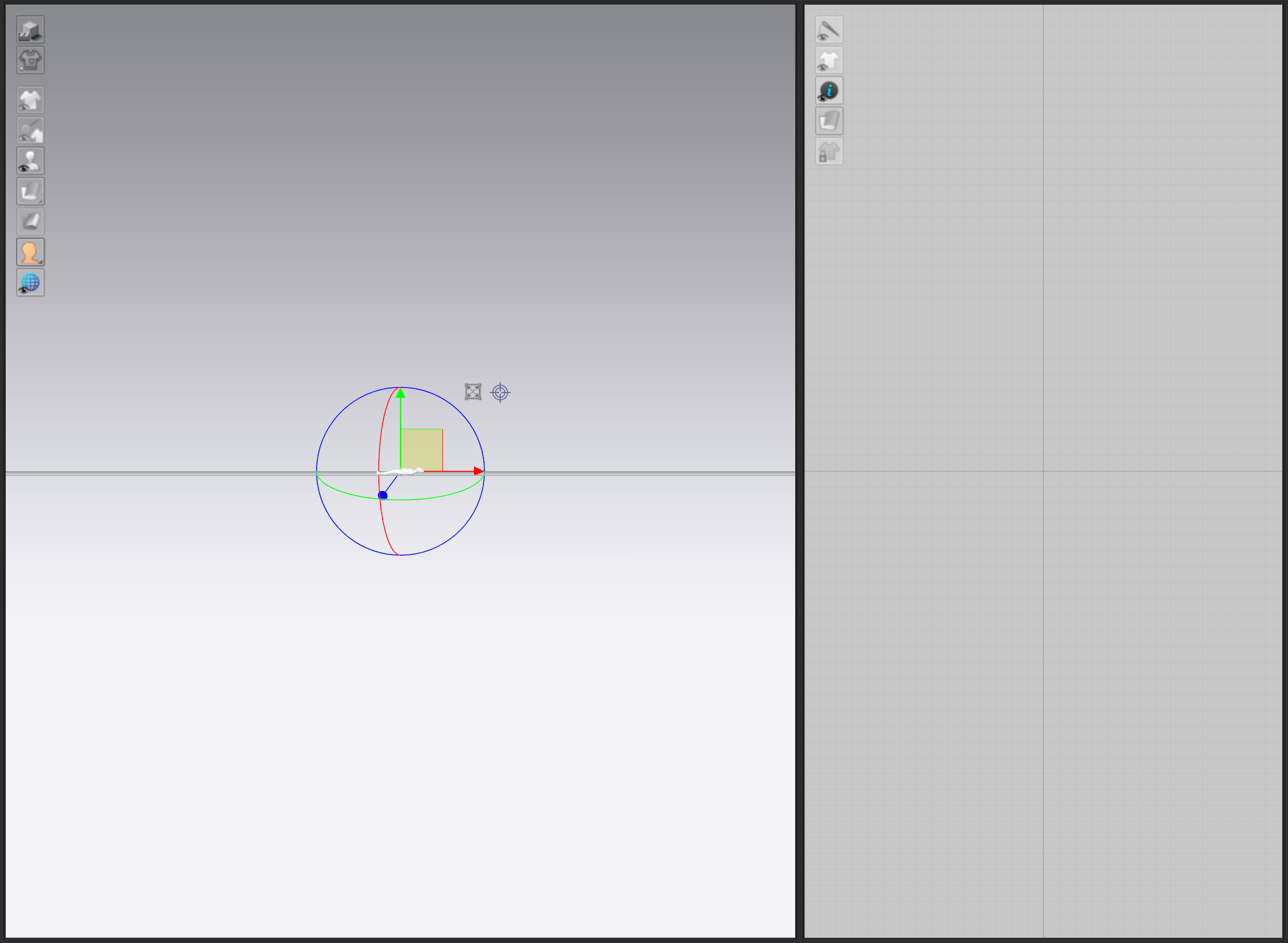
I tried to import an *obj file (scanned body) following all the instructions, however it appeared aligned horizontally and extremely small without the possibility to zoom it. What could be the problem?
-
Avatar's can't be scaled. You have to bring them in the right size and location from the import menu. You have all those options there. It will be trial and error unless you are exporting the OBJ also, as you can control it on the export side.
0 -
You can get it right 1st time, when you review your models 3D orientation relative to the x,y,z swizzle axis in software's. This is clearly shown in almost all 3D software according to the CG convention for axis color - you just have to know where to look. Do it once understand how each world space is orientated and you will only need to take one step, observation of the swizzle when you make your character then the refactoring of it's axis in your next app.
The gizmo does have a scale feature, it's a pick cube at the center of the tool, however when you create your scan, and it's final mesh you can set both the scale, axis orientation and insertion point (eg: ground plane point). It's typical to do that work in your modeller of choice eg: modo,maya,blender,max and then set your worldspace 'swizzle' (x,y,z) axis for the avatar so it is the same as the CLO3D world space or refactored on export (translated swizzle axis). You can change this on import of an avatar object in CLO3D, but it's perhaps best to do this in your previous application (export preset) so you always have a compatible character exchange setup based on each software's vanilla default.
Most 3D modelling software allows you to make a export preset that works with their softwares world space (xy,z) axis, which is a good way work so you have custom presets for each next software workflow. You can then simply call up that export axis and scale translation preset according to the next workflow you are sending your character too > eg: CLO3D.
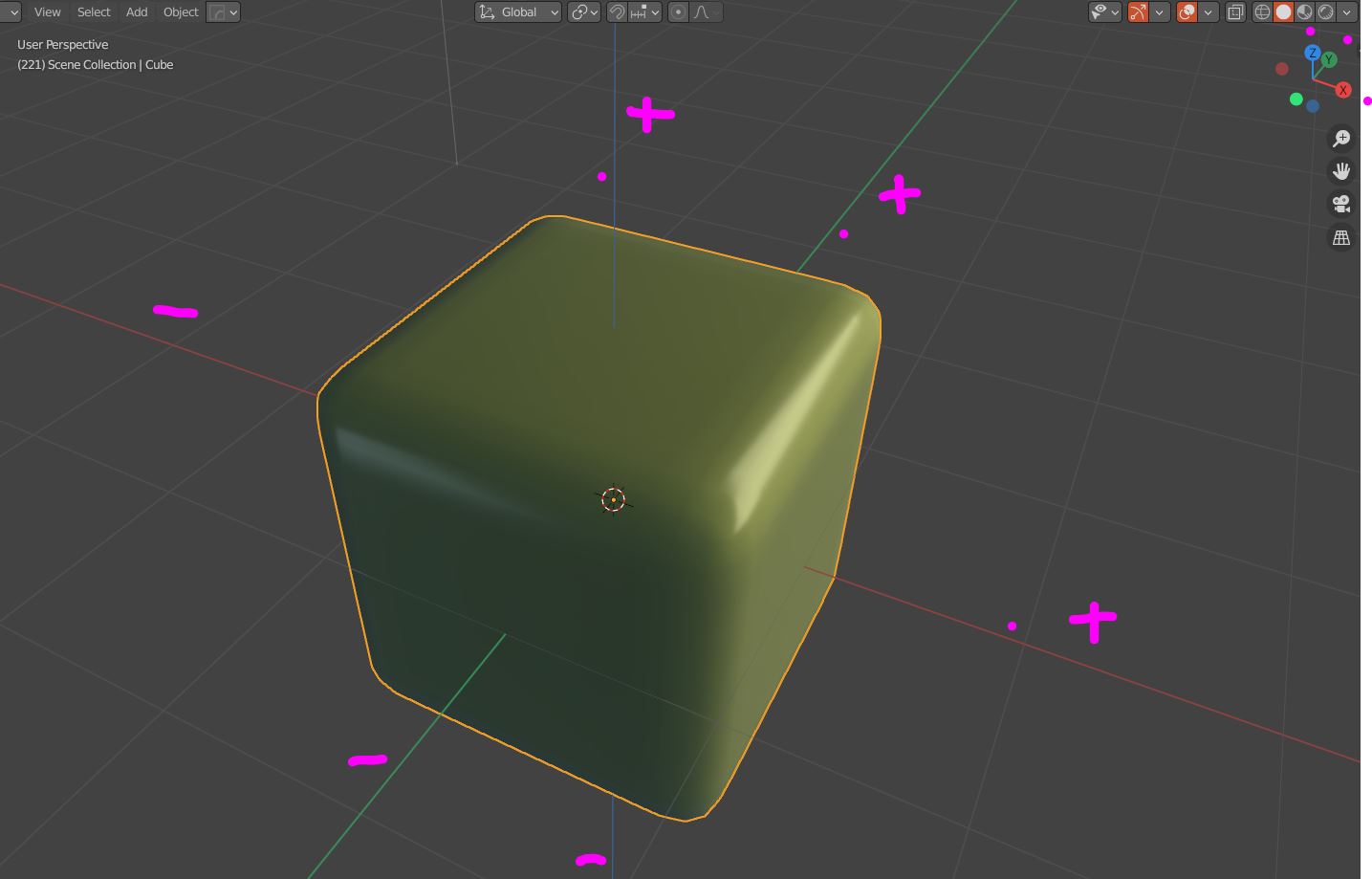
I would check within your modelling software and set up an export preset that sets your swizzle vectors for the x,y,z axis to the same as those for importing into CLO3D. Swizzle axis in 3D software generally stick to a convention, world space is simple 3D space whereby the paper space (2D) of front view x,y axis is extended with depth > the z axis. And these are typically colored in the standard red=x, green=y, blue=z. And the swizzle has positive and negative axis. paper space is (positive) x,y.
So when you load your character into your 3D modelling world space, look at the positive x,y axis as that is your CLO3D 2D paper space. Which in the 3D window is how your patterns appear in the 3D world space when you set them ready to start assembling around your avatar. (front on view) to the standard CLO3D avatar. And note the CLO3D gizmo swizzle also follows this universal CG convention for axis colors.
Below the positive (+) and negative (-) axis of the swizzle are denoted by the color of the axis and their respective vector direction. When you model a character you have to take note of which planar orientation (eg: floor plane) you are working with and then when you export you can create a preset to ensure this is re-orientated to the CLO3D world space for the x,y,z swizzle axis.
Below you can see the gizomo's world space gizmo follows the same axis color convention with the forward front plane representing the z axis. In the 2D paper space drafting view in CLO3D this z axis would be in the direction of the screen coming out at you perpendicular to the screen.
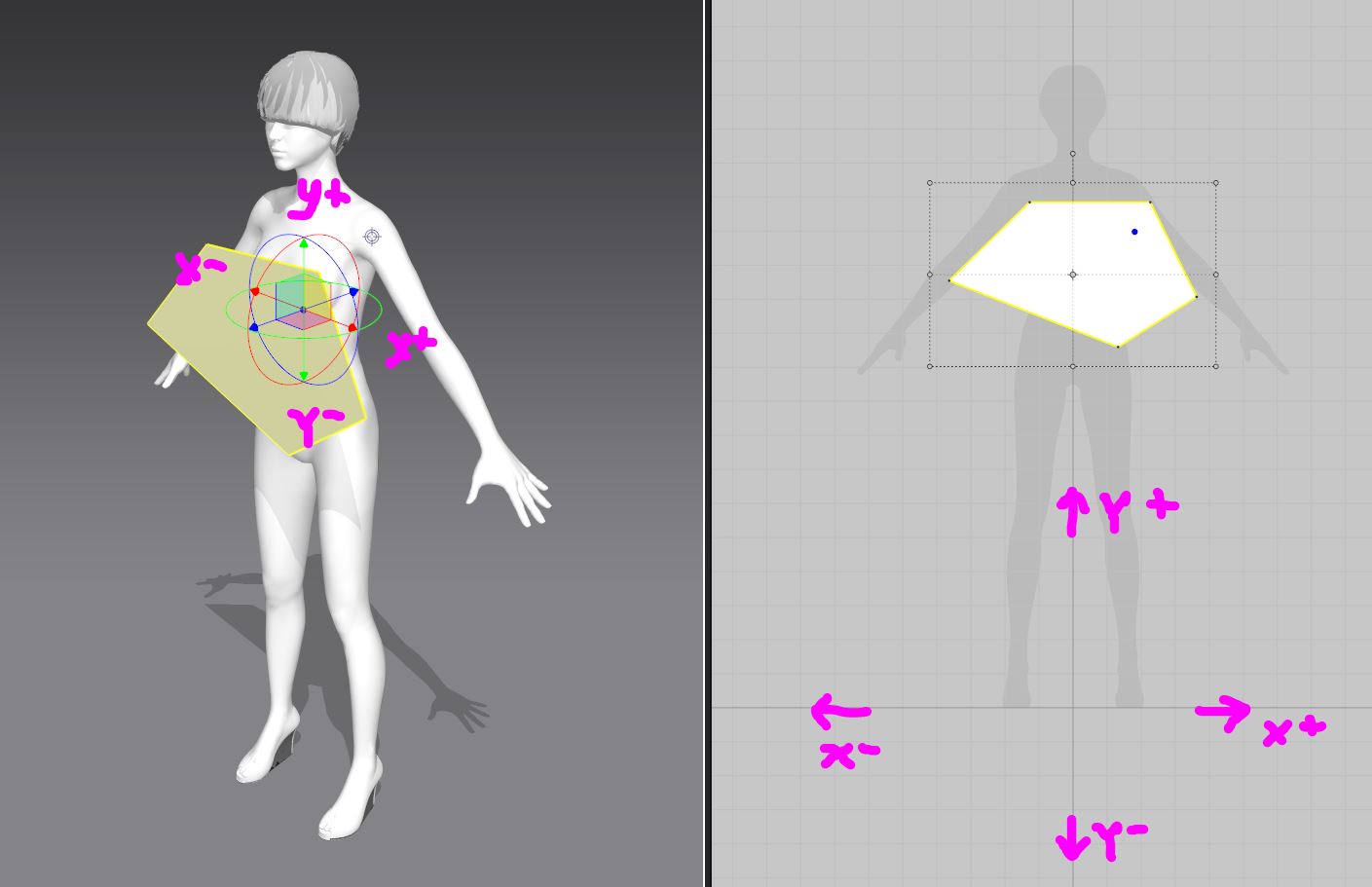
So when you wrap your head around what axis orientation your swizzle (axis vector direction) is positioned in each software you can compensate for that on export with a preset where you adjust that, along with the characters scale. Scale between systems can also be set in a similar fashion. Some use metric and some use non-units, dependent on your prior software. And then the format you exchange in also has some default settings standardized (eg: fbx verse obj export data format). CLO3D has an autoscale option that will read this scale on import exchange format and typically adjust that correctly between systems but always best to do this manually in each software so you understand the scale you work at. Note on export from many prior systems you often have to set or flush scalars associated with your character model otherwise on export the scale can be attributed to editing work you did when refining that character. So it is customary when editing a character to clear any scalars from the model and set your world space to either a compatible units measure (eg:cm) or set to unit-less.
Hope that helps you understand there are lots of features in both your prior software and in CLO3D that let you visually see the axis orientation and that scale and export can be set as a preset you call up repeatedly, and only set once, which makes character export a quick and seemless experience.
0
評論