How to create a complete UV set for thick garment

I have a t shirt which I'm exporting as thick, but when I open it in 3dsmax the uvs for the front and back overlap, meaning my label graphic appears on the back of the t shirt, but backwards. How can I create a UV island for the rear and side of the mesh?
-
Update: > Export as thick mesh unified.
Although you can export mesh as not-unified the pattern piece UV's will be based on the tile map scale and will not be placed into a UDIM texture atlas (eg: UV editor workbench).
For UV maps and pattern piece atlas maps (UDIM's)
Use the unified UV export option and before you do that on export use the UV workspace and lay out your UDIM UV atlas maps for the pattern pieces.

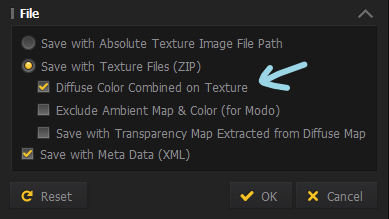
When you export as thick you have the option on fabrics (shader) in the object browser to apply the same texture (or an alternative) to the front/back/side. (see Material > above)you may do this for each texture map type (diffuse, normal, metalness, roughness, opacity). So this gives a lot of texture flexibility - however you need to be aware of doing this task BEFORE you export or at least in checking off these items on your projects pre-export checklist.
You can also export as object mesh thick mesh (not unified) and define the front/rear/side texture colors as tile maps > this separates the mesh by material color selection (but no UV unified UV map is avaialable). This is not really a good option (see UV is as a pattern piece relative to the material texture tile and all the other texture map options > so unified UV export is simply better).

When unifying UV co-ordinates are used > The SIDE edge mesh UV has all vertices packed into a single line (edge) on the main pattern UV island (seamline), sat right on the image normal, this means you need to relax all the side edge UV's if you want to apply a custom tile map fill or other texture to that edge.
There are subtle differences in how the (fabric material) export gets treated so you really need to try these options out.
You can also save as thick mesh (.object) but over-ride the single UV diffuse to get the front/rear/side material (fabric) shaders to load in you next workflows material stack as basic material shaders > just toggle off diffuse and normal map.
You can export all the other texture maps (opacity,roughness, metalness,diffuse, normal) as a set using the UV editor workspace earlier and simply swap them in your next render engine shader node graph. So this mode will get your texture (mesh face) selection and 3 materials (front/rear/edge) into your next workflow cleanly. The only downside is that thick edge mesh has all the vertices placed on top of each other based on the pattern piece mating edge, you will always need to manually deal with these if you want a custom edge texture detail to match the front and rear pattern texture direction.

Below (red UV map with 'unified' pattern layout) > this is what you want on export as a UV and texture atlas (map) layout. How ever the red (mesh) edge on the thick export model has all the UV vertex points aligned on top of each other on the pattern edges (think of these as the sewing lines). So for these to have a separate UV map for the thickness mesh edges you will need to manually create these. You can simply select by mesh group across the whole project (one click) and unwrap these and move to their own UV map. So that is generally the only hassle with texturing a thick mesh export. You can use some of the UV addon tools for blender to manage that task in two steps (about 5 minutes work) to rectify this CLO3D export quirk.
 0
0
评论