3D Window Transparency Issue

Hi to everyone
Since I upgraded to version 6, clo3d displays into the 3d window a strange transparency of the patterns.
In an older post somebody talked about to change the png texture to jpg file, but I think it's not the solution to this issue, cause I have other files with png textures that doesn't show up transparency.
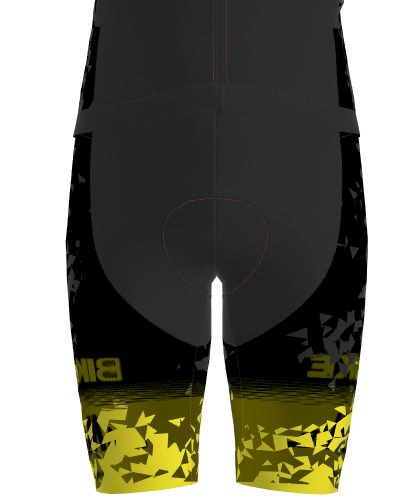 Attached is the picture's issue
Does anybody help me?
Thanks in advance
-
正式评论
Hello info. As the other user suggested, changing the file to JPEG format is a good solution. PNG files can still work, BUT if one of the edges of the file has even one pixel that is semi or fully transparent, that will cause the issue you are seeing here. So you could leave it as a PNG, but make sure the artwork is fully OPAQUE all the way to the edge by checking in Photoshop.
-
I don't agree technically with CLO3D here, so let me perhaps correct this as it's a relatively easy fix, it's nothing to do semi-transparency as that is down to what value you attribute to the artwork and alpha channel if not using the default opaque value in any RGBA png image. In other words you need to know how transparency works based on the file format and not ignore this as part of your knowledge, as it's important part of streamlining how image data can be manipulated easily. Knowledge = power to get what you want when you want.
PNG's are fine, what many FORGET is that the transparency is generally governed by the software's default white /black value in the RGBA (Alpha) channel, and don't check this for the next application when they export the file, or assume the same transparency alpha value will apply in the next app. Any application (eg:CLO3D or photoshop, blender, modo, et all) may treat the designated alpha value differently. This means >you< need to check this alpha channel value is not 'flipped' for the next application being used. Some software's have a bias towards reversing the mask white/black value and this you can amend this by simply discovering which value the app uses. And then change that on export from your previous app to the relative value to make any shift between those values (0,255) appear as opaque. And as we all know you could choose a custom value (eg: green or blue screen) to be that alpha value in your artwork or video .... hence knowledge on this unlocks new artistic possibilities.
Another simple fix, is to export from your raster artwork application as .png RGB and not RGB+A (the alpha channel). Simple and can be batched out en mass. No need to use a .jpg as that just adds yet another image into your project library and does nothing to solve the knowledge gap causing this technical mis-understanding, time to do a refresher on file data types, perhaps. You can do this and CLO3D can take .png fine.
My suggestion is check the value you have assigned to the alpha channel in your image in photoshop, and decide if the image mask for opaqueness in that image is appropriate for the next app (CLO3D) relative to the artwork design, and try maybe flipping that value. In many instances the artist misses out this stage assuming an .png export (RGB and RGBA) in one click will solve the problem, and that the next app will treat all photoshop exports the same irrespective of what data you include in that datafile (eg: the alpha layer where the opaque value is not calibrated for opaqueness for a single color or color range of values) - no, it's a different software application and hence you must check that and better yet master how it works so you are in total control of the end result. No guesswork or flubbing it - know how it works is a safe bet, then you are armed with that and confident in how to manage that across all future artworks. Knowledge is transparency in how to master it!
0
评论