Can't select a size in graded pattern

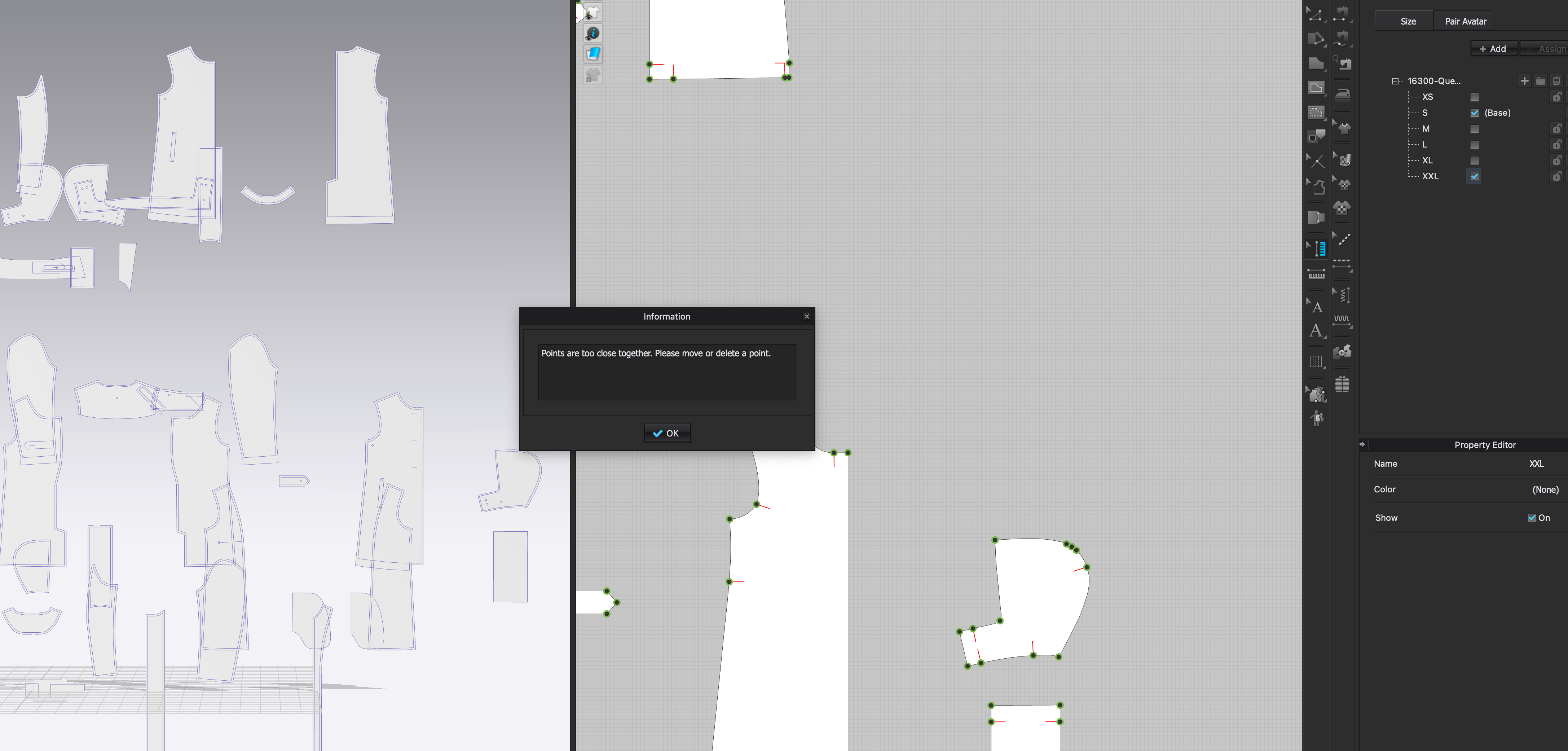
When I try to select a size in one of my graded patterns, I get this error:
"Points are too close together. Please move or delete a point."
How do I fix this?
-
If the pattern was made in another program you will need to go back and adjust the segment points. Often there may be 1 or 2 segment points to close together/nearly overlapping. Go back to where this was created and remove excess points.
Sometimes this can be done in CLO as well by removing points that are too close together
0 -
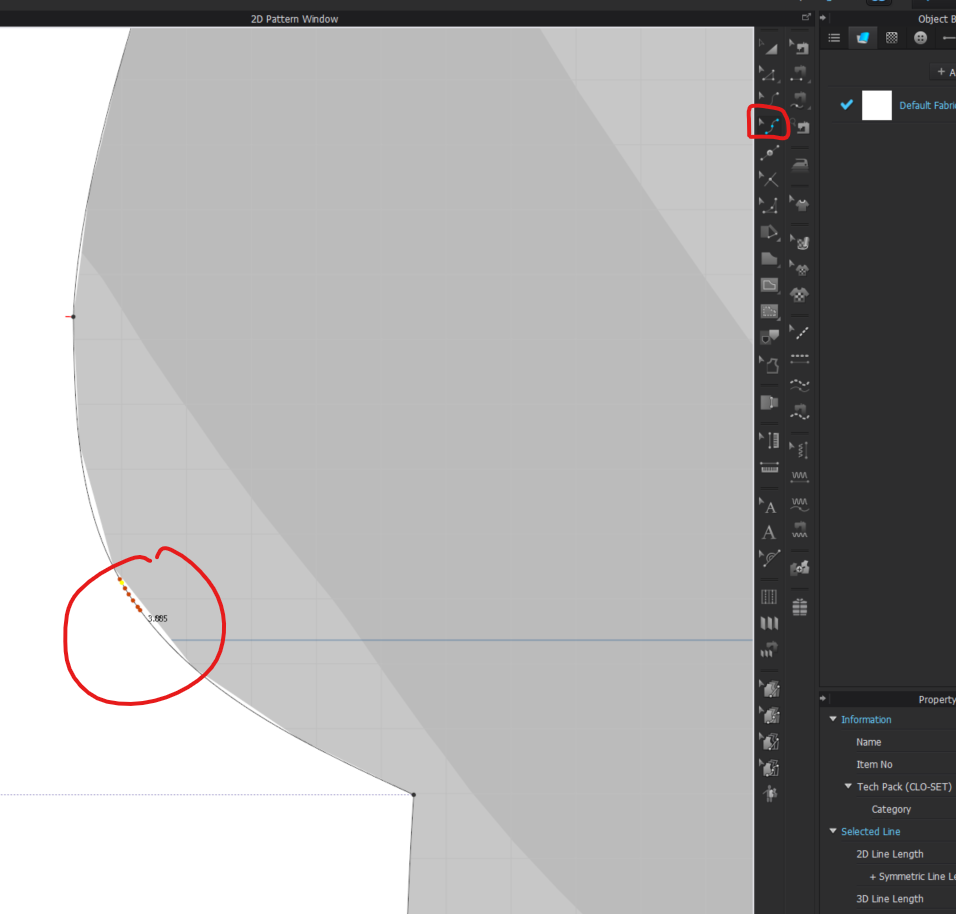
Can you show me an example of some points that are too close?
-1 -
It can be Segment Points or Curve Pints that can be too close together.
 0
0 -
Thanks! How do I remove these and not ruin the curve?
0 -
Which pc was this?
0 -
What do you mean by which PC? It is a PC Computer and not a mac.
Do you mean which version of CLO? It is 7.0.480
To remove Curve Point you can select the using the Edit Curve Point Tool and just press Delete on the key board. Or R-click and select delete. You can also Marquee over multiple dots to delete more than one.
To make sure you maintain the Original shape. In the 2D window and you can select an entire pattern piece > R-click on the pattern piece > Choose Clone as reference Line. This will leave a live for the original shape. You can then delete unnecessary Curve Points and move around the remaining ones to maintain the shape
0 -
Thank you.
I meant pattern piece (pc).
How close is too close?
0 -
There is no set distance. It just depends on the curve and how it is being edited. If the edit/move will make a curve point overlap with another then they are too close.
0 -
This is what happens to after I delete some of the pointshttps://www.loom.com/share/e9555b8a1cbd4bab89a4c531451e9b90
0
评论