Fabrics are not demonstrated properly

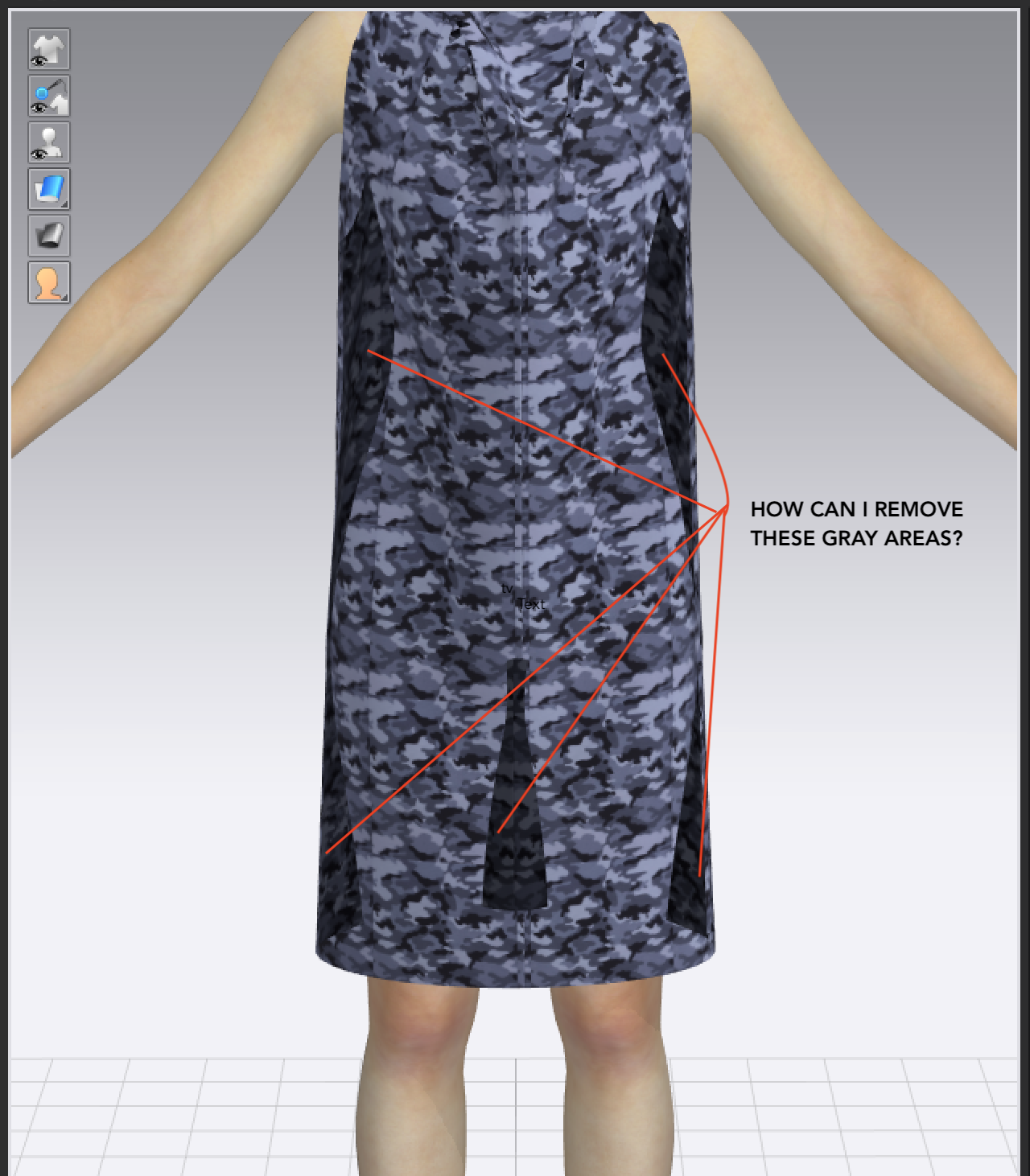
I applied the print of my fabric but 3D view doesn't demonstrate the fabric properly. Why is there dark gray area in the sides? This is not a fitted dress. How can I get rid of the dark gray areas?
-
When you use .png or .psd or formats that can contain alpha map information for images in your textures, you need to ensure you are not using RGBA when you don't want transparency. If you have a transparency channel in your image save the image out again as 8 bit RGB only.

Open your texture image up in photoshop or paint.net and make sure when you save out that texture map there is NO alpha channel included.
.png image textures that are exported from some image editing apps need to be checked.
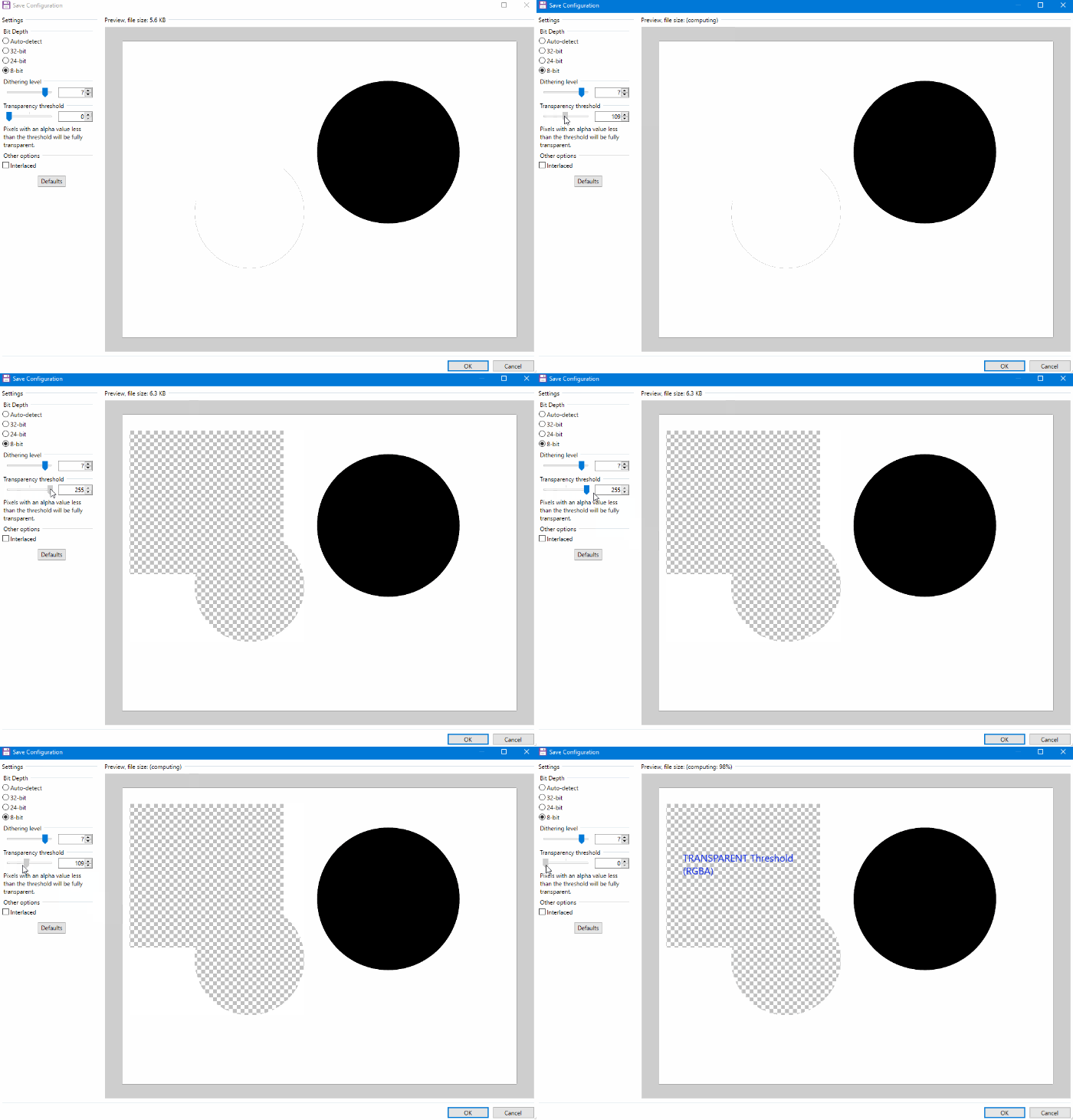
Note check your shader image texture. If needed set up an export preset for textures coming from other systems and batch process them for any correction.
When the texture is desaturated the alpha value can kick in on the fabric where the multiplied base color value now comes into play. This is a qwerk you may need to overcome.
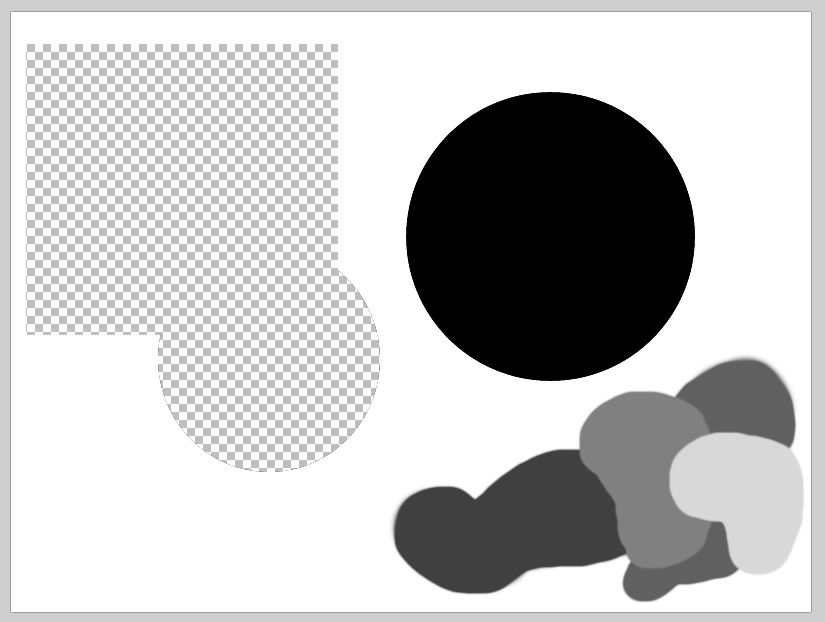
Texture MAP A (.png 8 bit / Transparency threshold RGBA set to 0 white)
Texture below with alpha value set to (0) thresh hold on .png export hence all transparent areas share white opaque value and render as base color on de-saturated image texture.
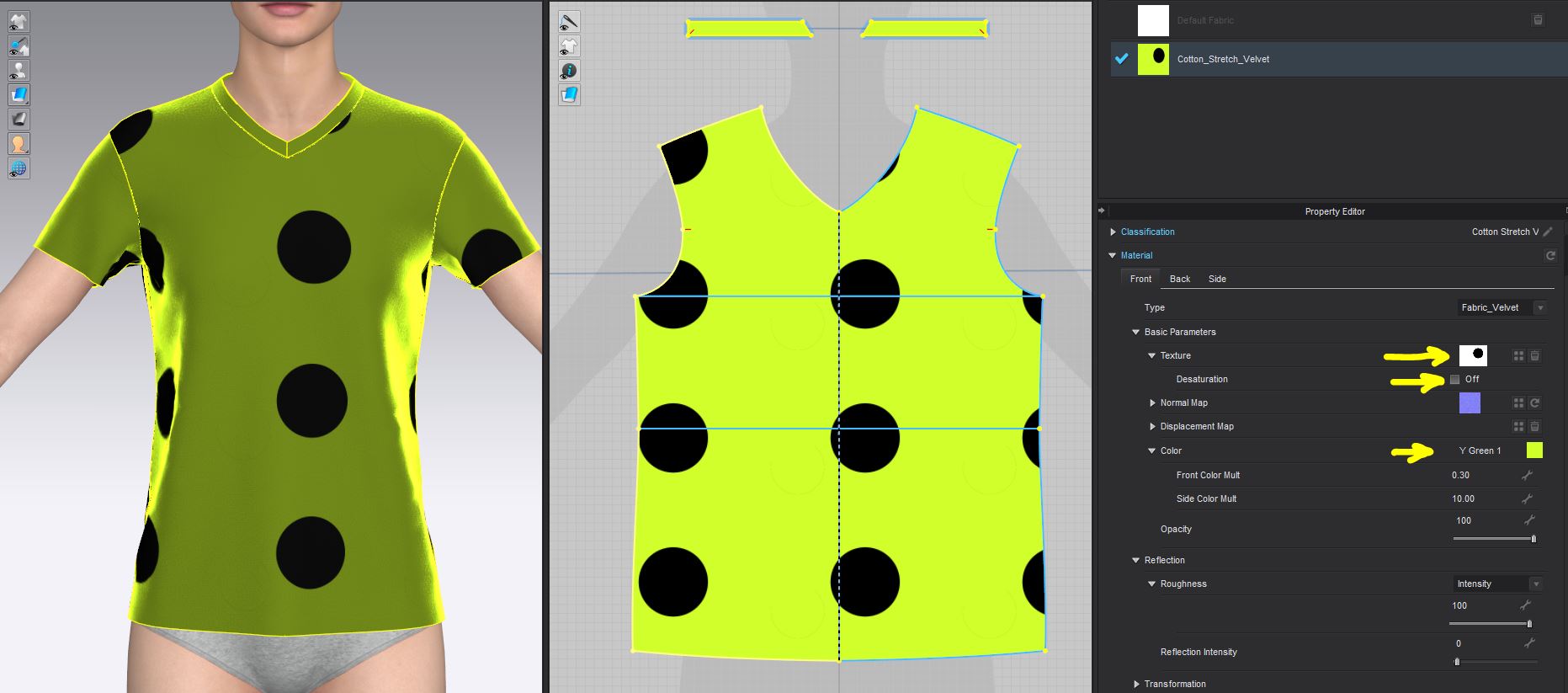
Below image is de-saturated black goes to grey white stays white base color multiply's with texture image.

Texture MAP B (.png 8 bit / Transparency threshold RGBA set to 255).
Below (new texture with alpha channel threshold set to 255) fully operational ? No. Transparent areas appear black according to assigned threshold value.
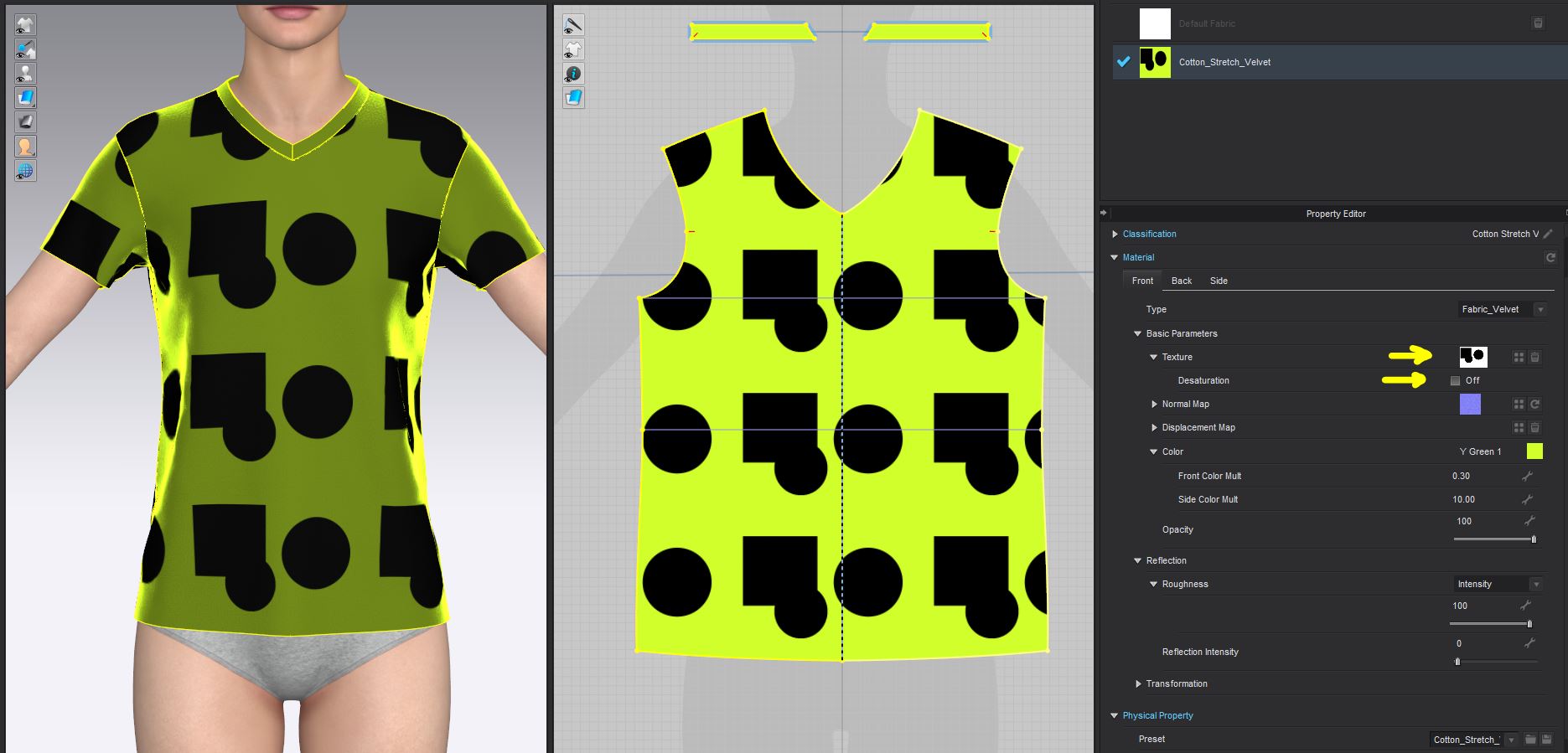
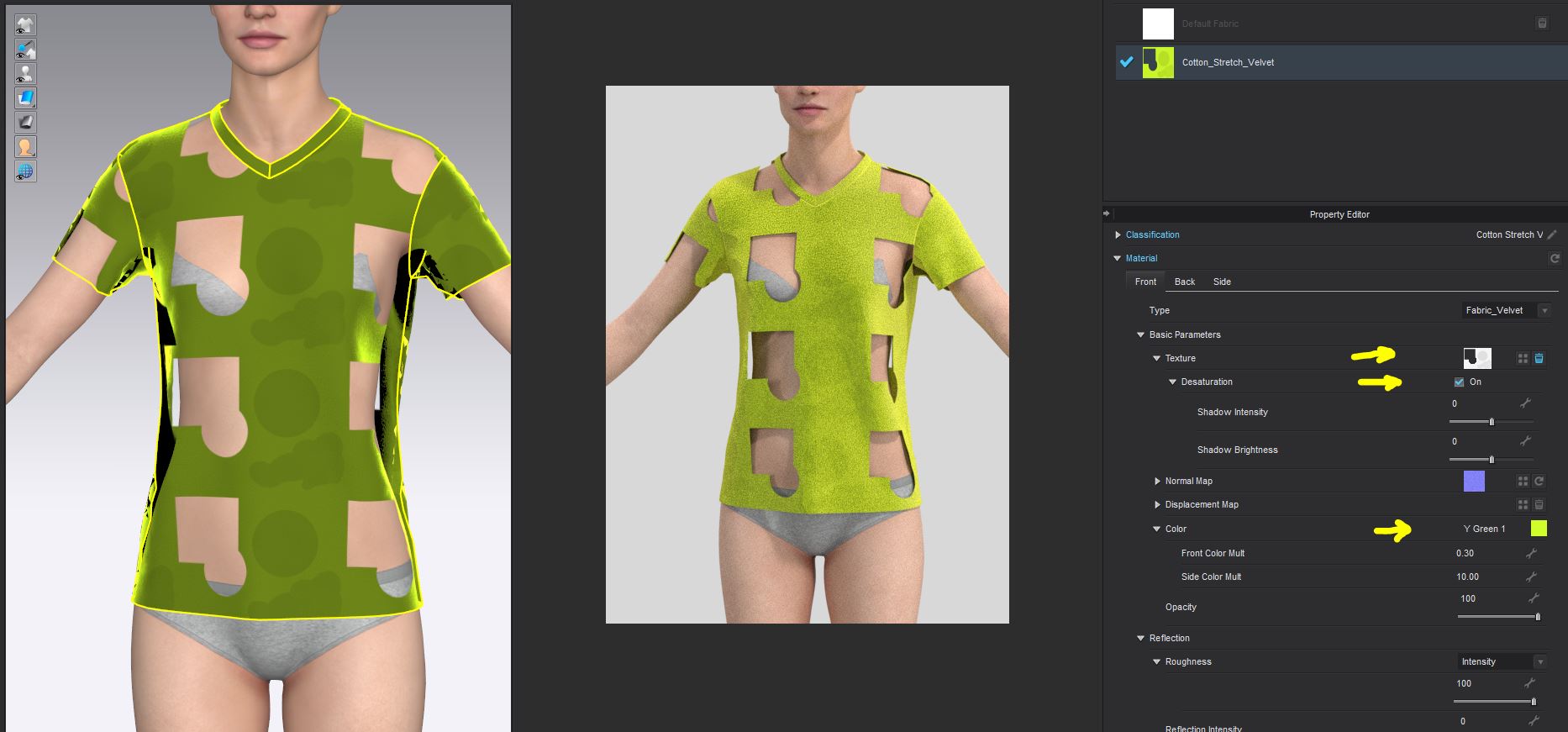
Below notice what happens when De-saturated .png image where the alpha channel now kicks in and base color is applied (multiplied) to image. White and black now de-saturate and multiply with base color BUT all alpha areas get assigned to transparency. This is something to take note of if using image maps that you did not create yourself. If unsure open them up in an image app and check them. And correct this 'qwerk'.

Transparent areas are now seen using the de-saturate texture mode with a .png RGBA image.
Above threshold set on export to black .png Notice how the realtime CLO3D view and the render vray view differ.

Below .png with transparency stored in alpha channel

Still a .png format but note the difference in how CLO3D handles the data. When the transparency data is stored in the alpha channel between apps.


Rendering .png texture image with alpha data stored in channel
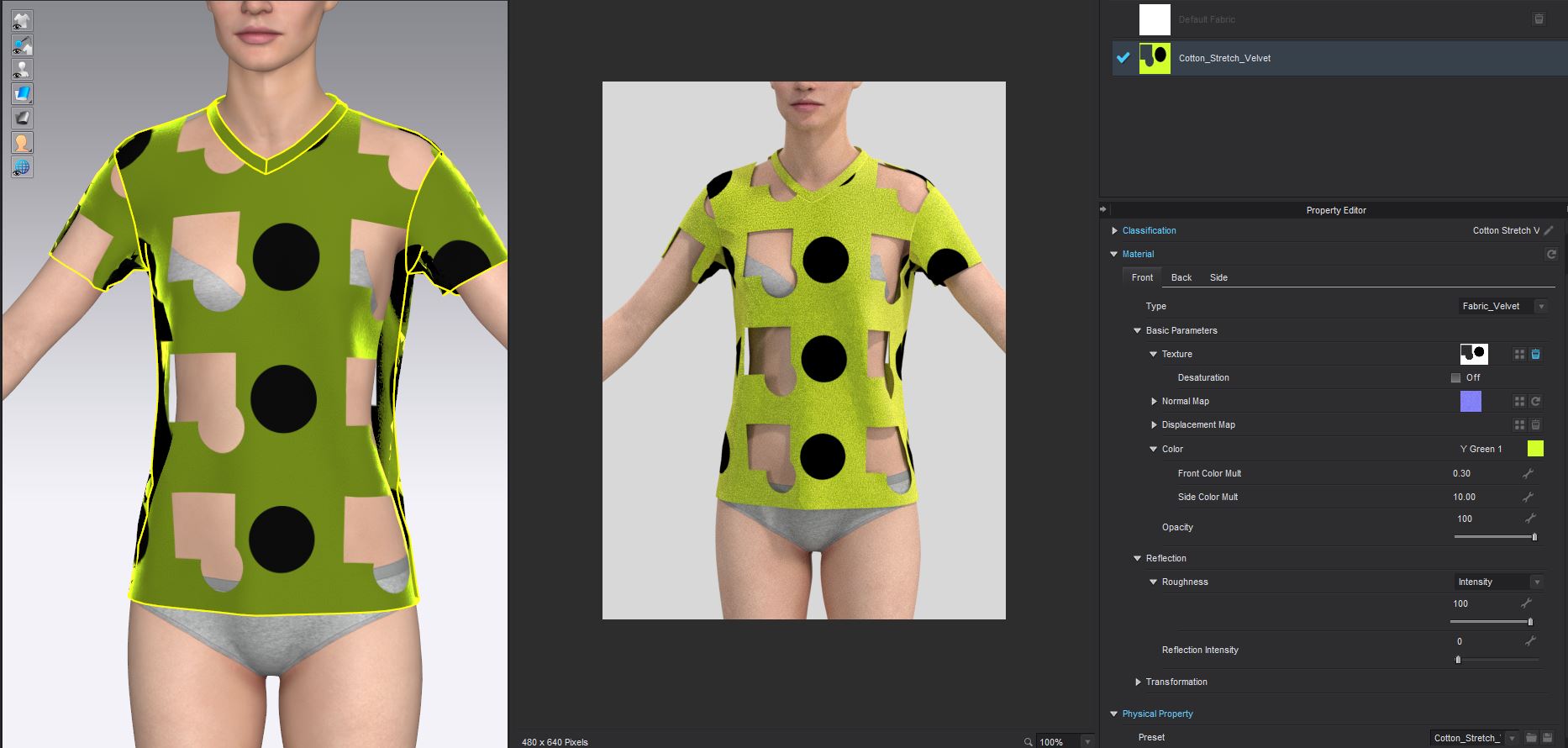
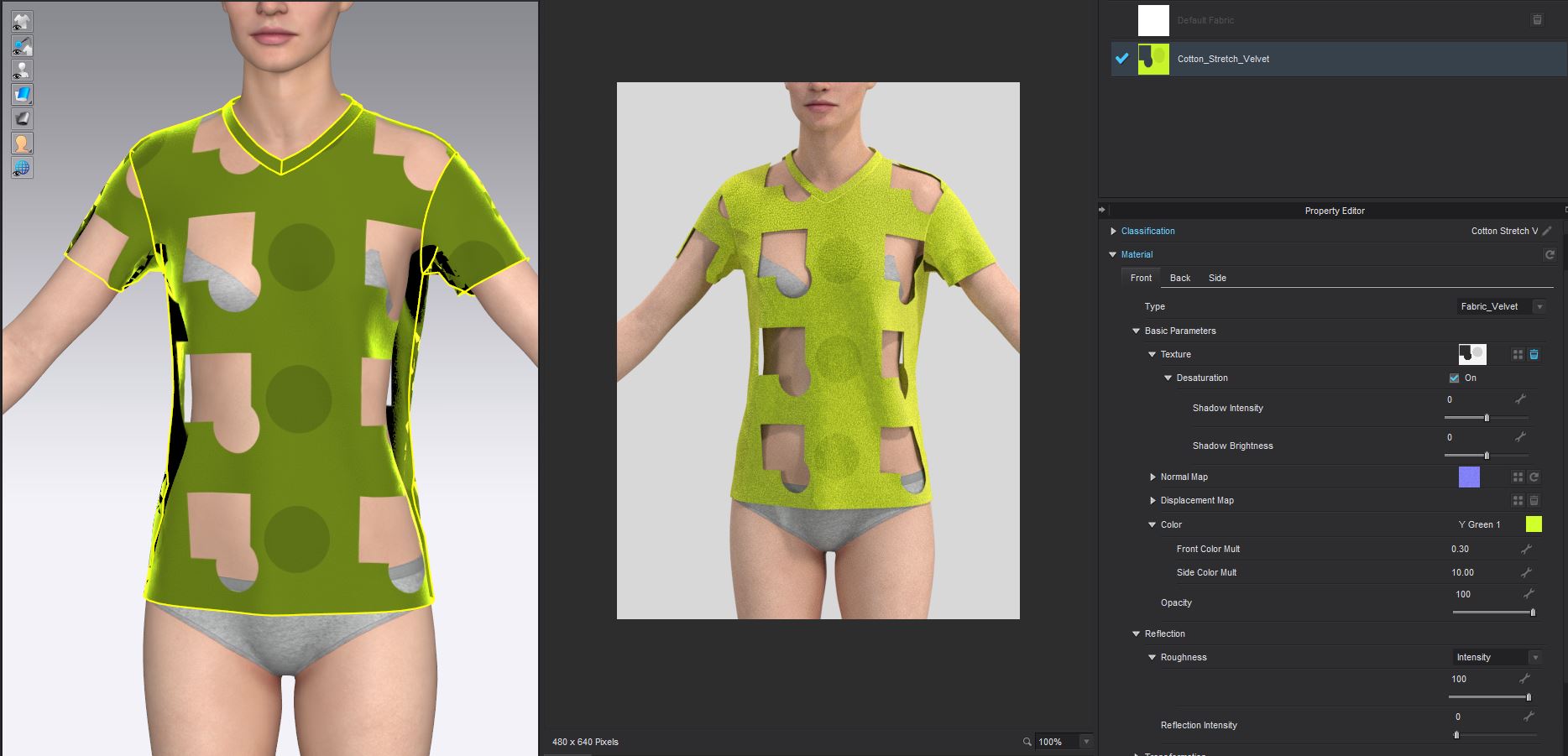
Texture MAP C ( RGB jpeg )
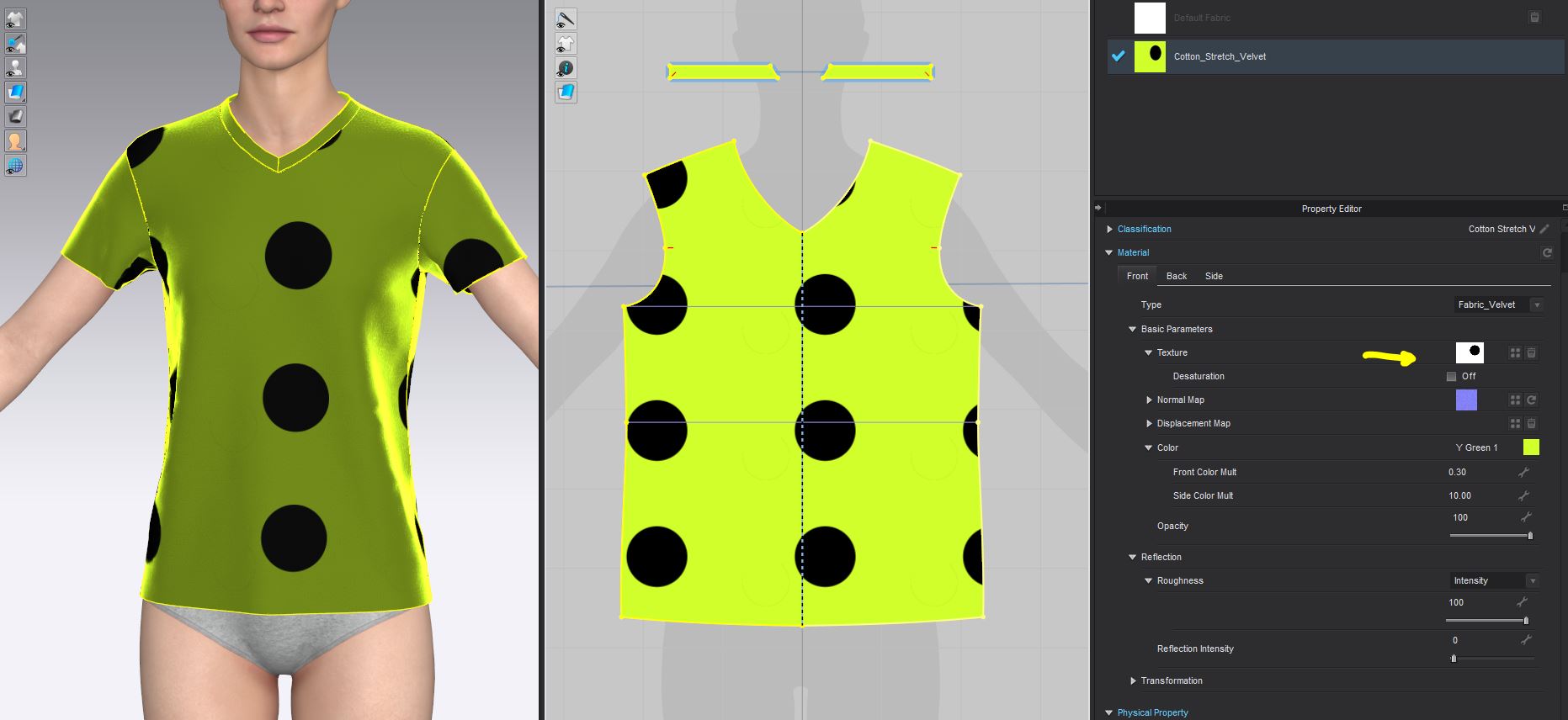
The jpeg format loses image quality so you need to be selective on using it.
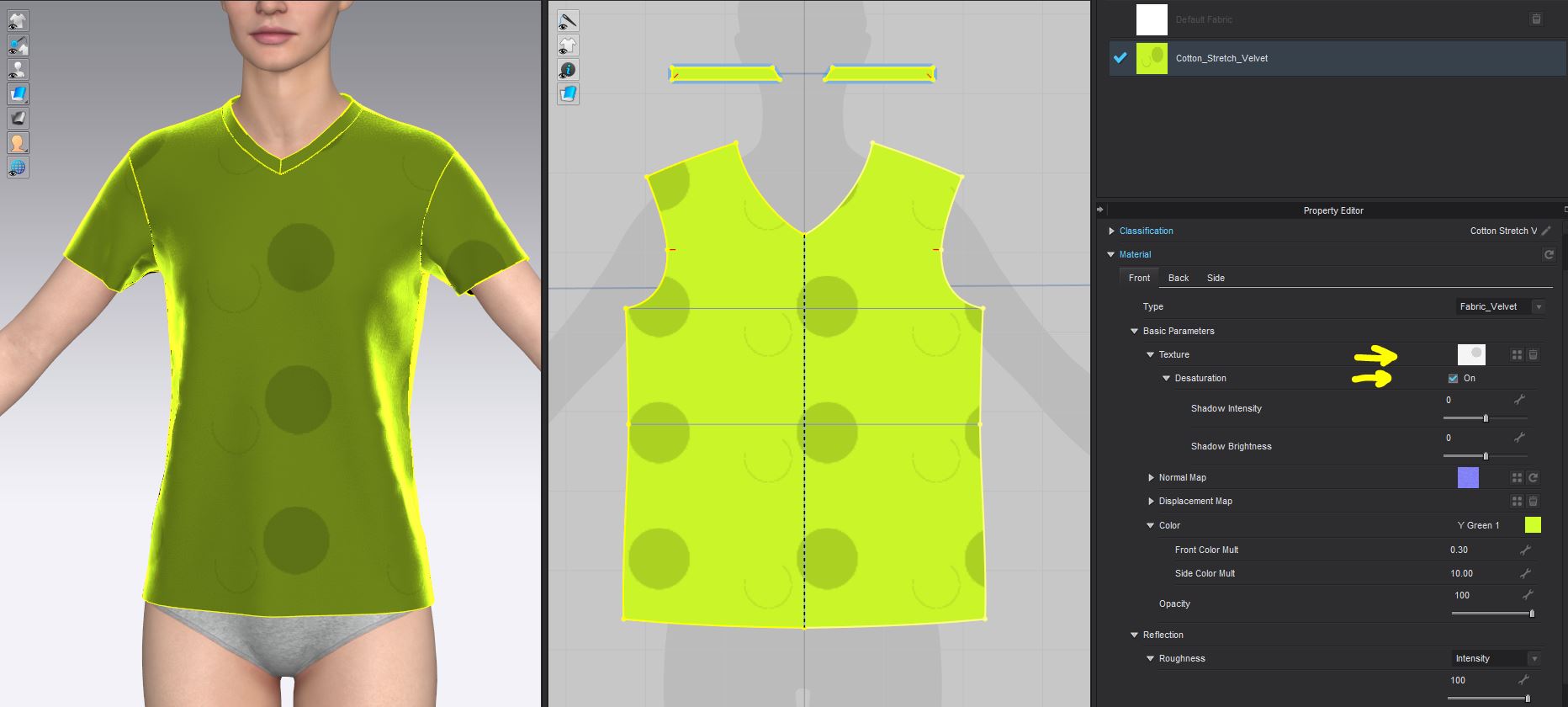
Texture MAP D (.psd RGBA photoshop image)
In this photoshop .psd image the alpha channel is immediately assigned irrespective of de-saturation.
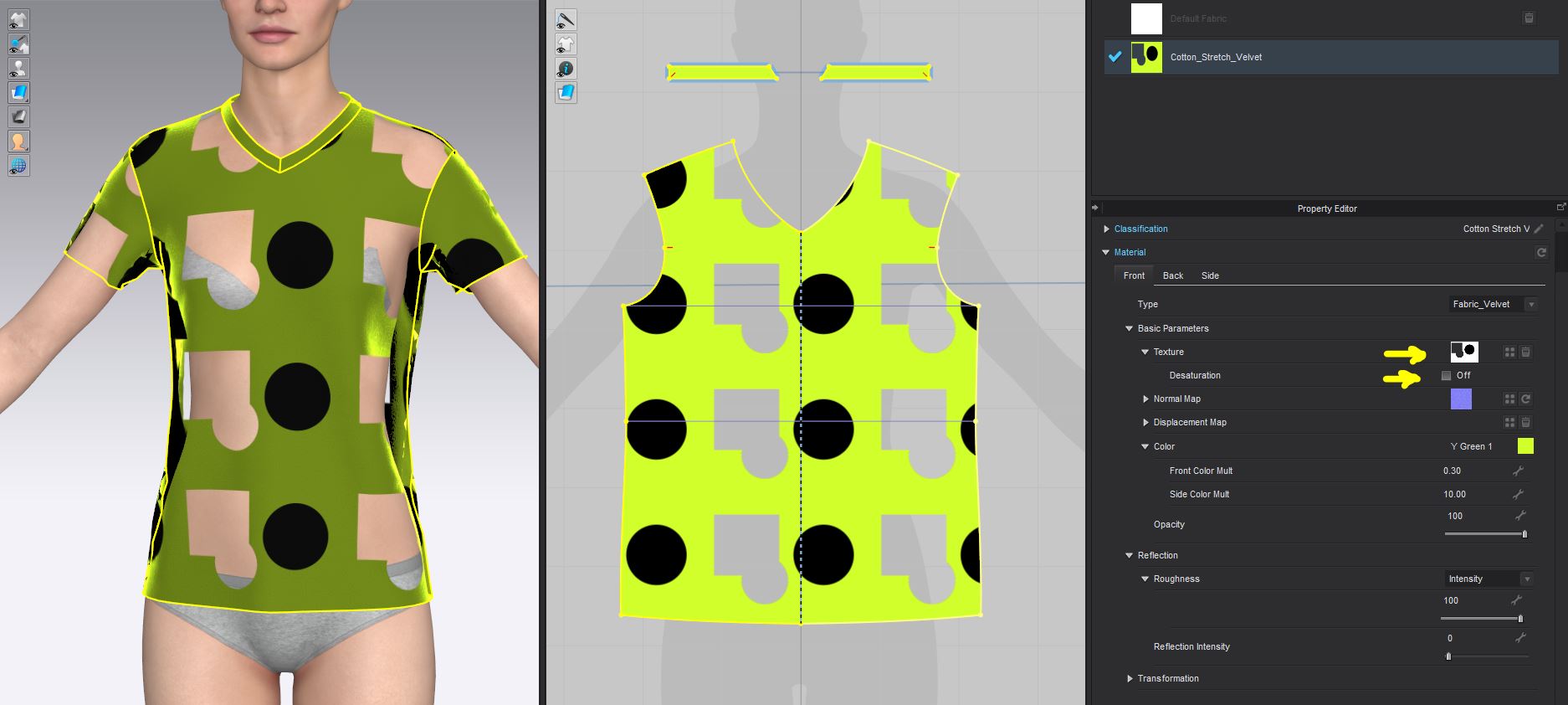
Below .psd texture image RGBA. desaturated.

Texture MAP E (.tif texture image with RGBA)
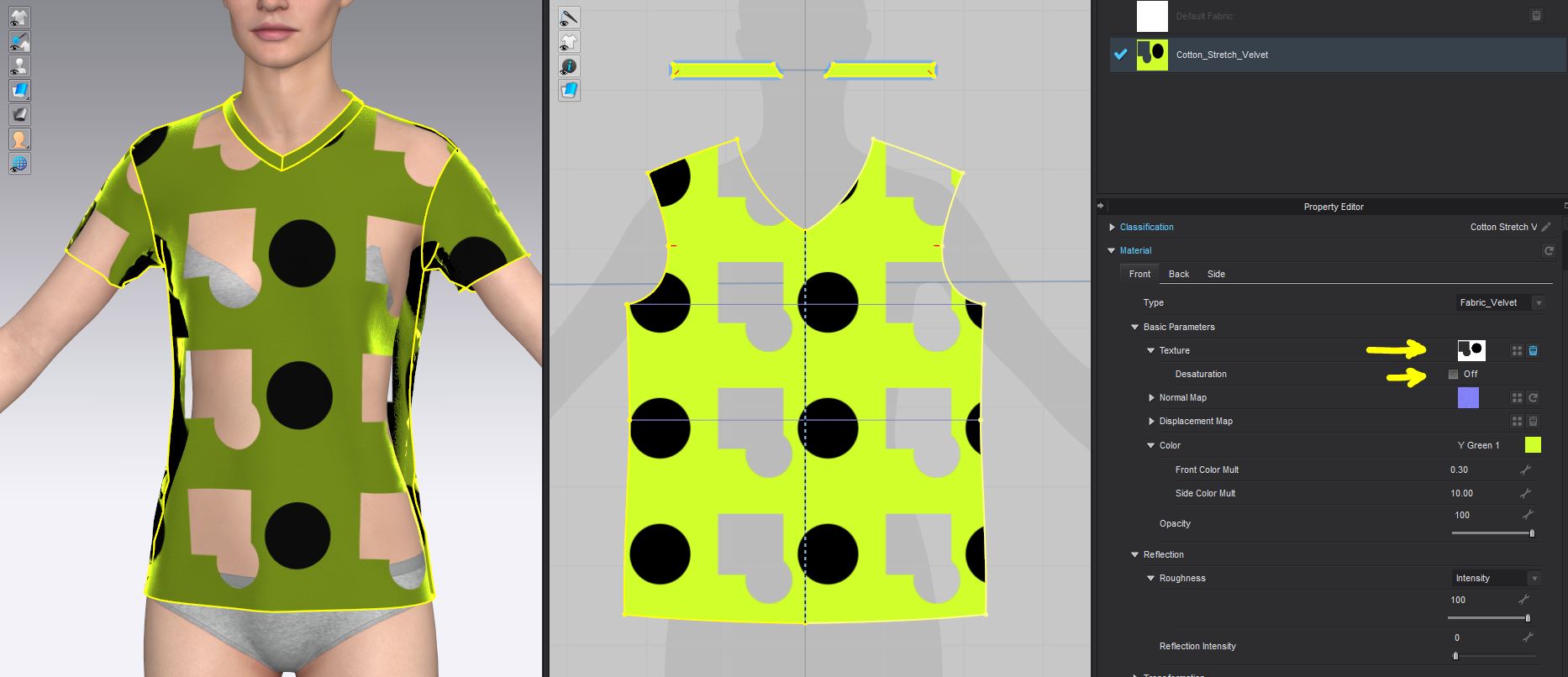

See how the .psd and .tif (RGB and RGBA) image format choices can be a superb options in CLO3D. For .png you need to be certain how you place the alpha data (store it) in the alpha channel on export.
The lesson here with 8 bit texture image choice > take note of RGB and RGBA and image FORMAT type (.png .jpg .tif .psd , etc ) they are not created equal dependent on how you save out the RGB and RGBA data in your previous app.
Therefore if you have in your assigned texture image some transparency using the 8 bit .png format or .psd RGBA or any format that contains an (A) alpha transparency channel you can get mixed results UNLESS you appreciate how that information can effect different render engine environments. CLO3D viewing work mode (which is a realtime render engine) differs to CLO3D vray full render mode > just like your previous applications may also treat RGBA image pixel values in the alpha channel differently. So you need to stay aware of the data you carry in any image file format you use.
A good approach is to simply save out your RGBA image without the transparency if you don't need it into RGB. So if it's a .png many apps allow you to dial down the threshold value for transparency or simply save out as RGB instead of RGBA. Many people save out as .jpg format simply because they don't understand what there image formats truly contain - so that can be used as well to avoid the problem. But knowing how it works is your best way forward so you can use any texture image format with confidence.
1
Comentários