How do I subtract a polygon with another shape?

I feel like I'm missing something here, but this is a basic feature in CAD I don't see anywhere.
How do I draw a square, then draw a circle. Then "cutout" a piece of that square with a circle. The only way I've seen this possible is through overlapping the two polygons then using the trace tool, which is super cumbersome because it creates an entire new shape instead of editing the current one.
Furthermore how do I edit a polygon? Add vertices without creating a new polygon and simply "merging" them? How do I add internal lines that represent actual points instead of just being a reference line?
-
Commentaire officiel
polkunus It sounds like you are equating the tools to how they work in Adobe Illustrator. CLO's drafting tools do not work that way. One option would be to start by Right Clicking on the Pattern Piece and Clone as Reference Line. This will add a reference line to your shape so when you DO modify it you can see the original shape and adjust the segments. Again using add Segment Points or Converting Curve Points to Segment Points would be the best approach.
-
Hello polkunus
Thank you for sending over your questions to us. Let me give you some answers.
If you would like to cut out a part of a square within a circle please follow those steps:
1) Create a circle with the Ellipse tool (E)
2) Create an internal rectangle inside the circular pattern using the Internal Rectangular tool. If necessary change it's size and position using the Transform Pattern tool (A)
3) To cut out the internal square, select it with the Transform Pattern tool (A), click right on it, and selection the option "Cut".
To answer your other questions:
How do I edit a polygon?
You will need to select the Edit Pattern tool (Z) which will allow you to select and move specific segments and points of your pattern or internal shape.
Add vertices without creating a new polygon and simply "merging" them?
If you would like to add vertices to an existing polygonal shape, you can do so by using the Add Point/ Split Line tool (X) which is available in the grouped tools under the edit pattern tool (stay pressed on your left click on the Edit Pattern tool and the other grouped tools should appear). Then to place a new segment point (or vertex as you call it), you simply need to click left on one of your polygon's side. The new segment point should then appear. If you wish to place your segment point somewhere specific on your segment, then do a click right instead of a click left. You will then see appear a pop up menu which will ask you to place your point(s) with specific measurements.
I hope this will be helpful.
0 -
Thank you for the response
How would I add this shape I drew in the baseline without messing with the properties of the edge curve?
I can't draw points outside of the polygon to add polygons to this shape.
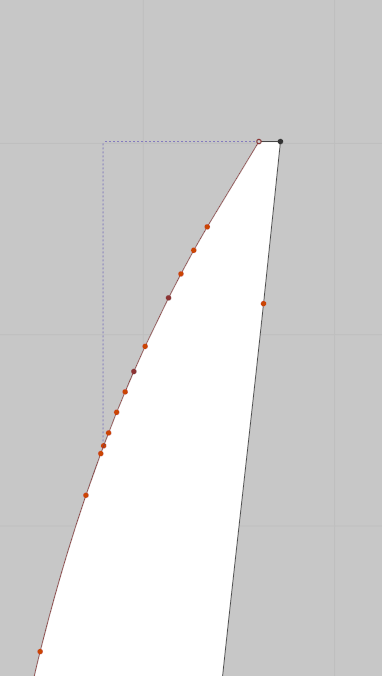 0
0
Commentaires