I made my avatar fully transparent, and now I'm having trouble making visible again.

I can't select the avatar while it's transparent so now I can't pull up it's property editor to change the transparency. Any help would be great! I'm pretty beginner.
-
A couple of methods:
Applies to MD10+CLO3D
Shortcut > (Shift +A) > show avatar
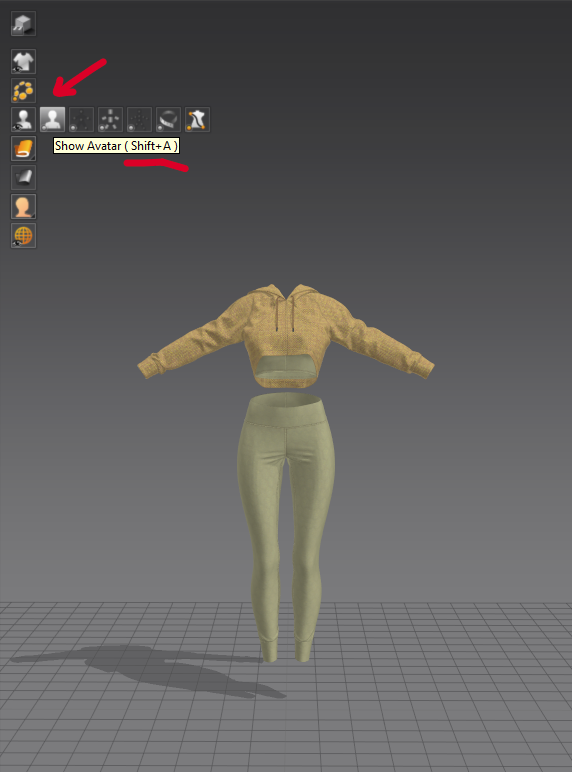
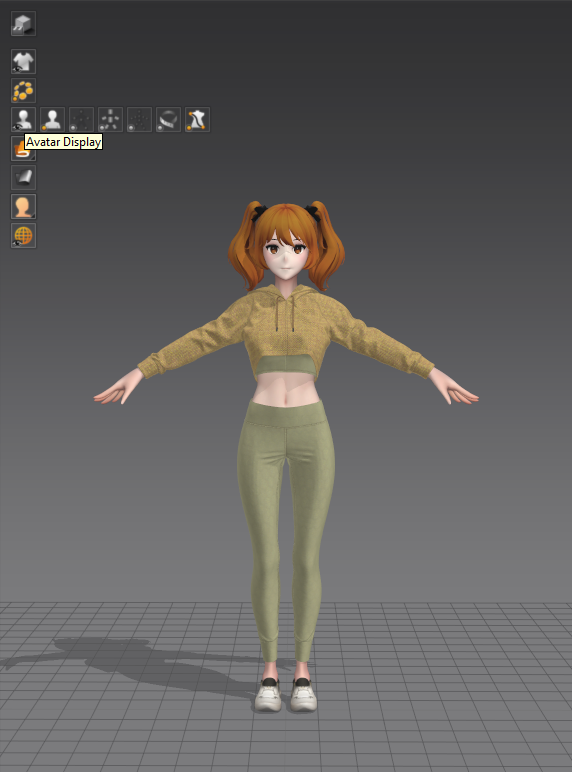
OR
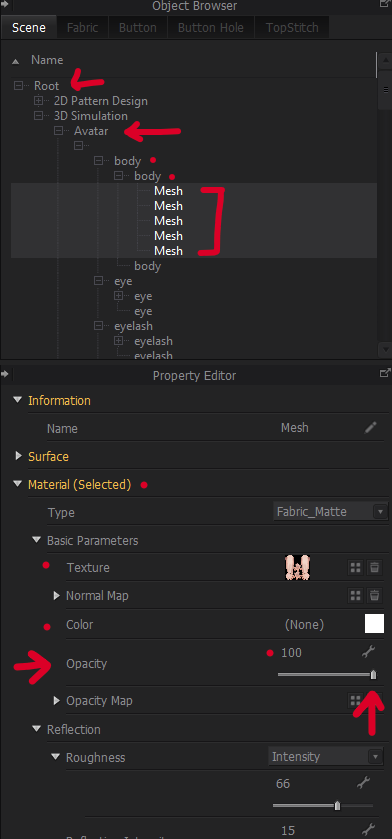
Using the projects scene tree you can always get to the maps opacity that might be set to zero and dial them back up to 100% see process below:
Right menu Object Browser

If you go to the scene tab and expand the tree as you work > root > tree > Select Avatar > Body > Body > mesh (multiselect) > property editor > opacity 100%
Multi select the items you want > shift +select 1st and last mesh name in tree
 0
0 -
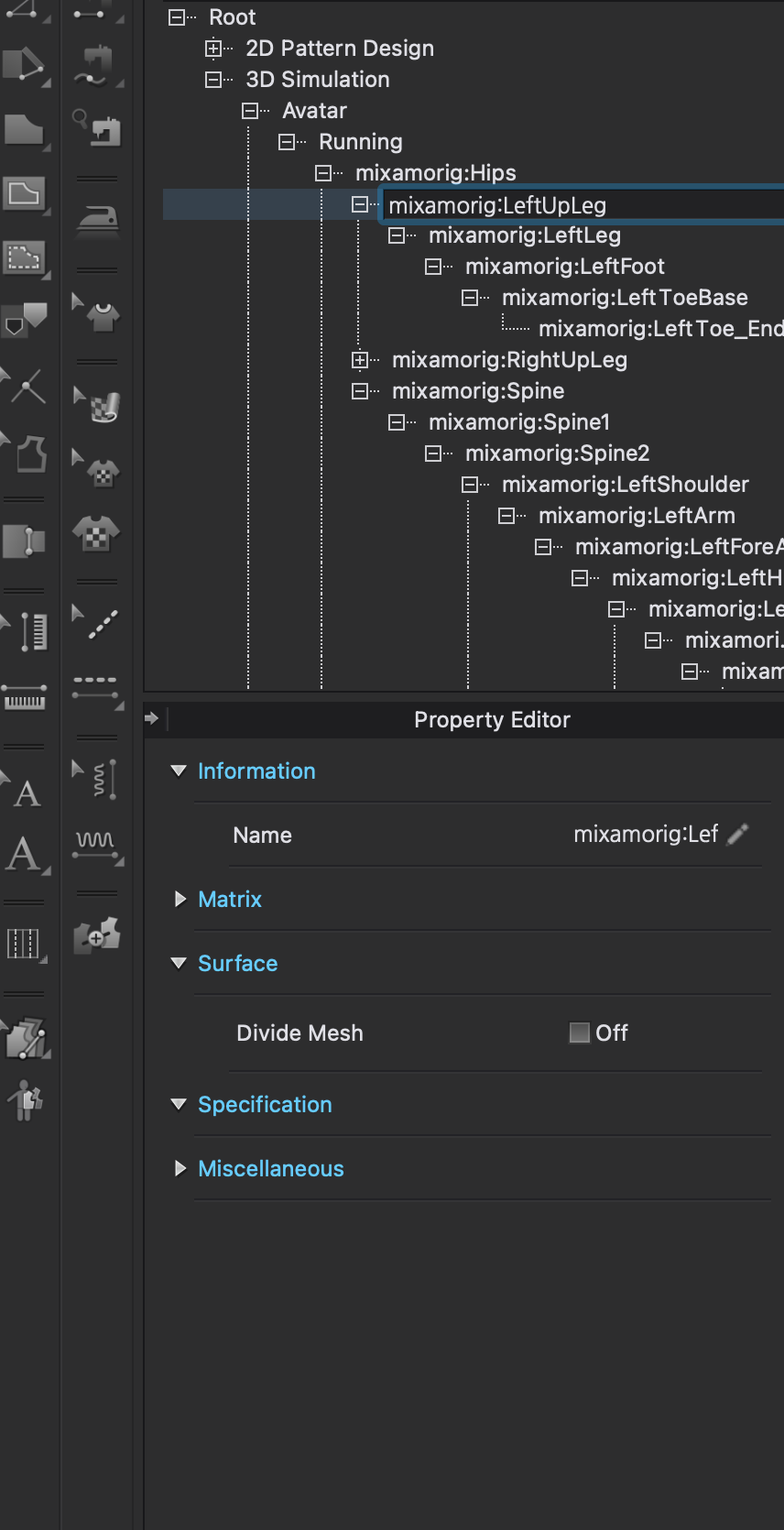
hey thanks for the response. I'm still having trouble because I uploaded a walking cycle from mixamo and now when I select "avatar" in the scene tree and choose one of the drop downs, it doesn't give me any option to change the opacity? Any Idea what to do?
 0
0 -
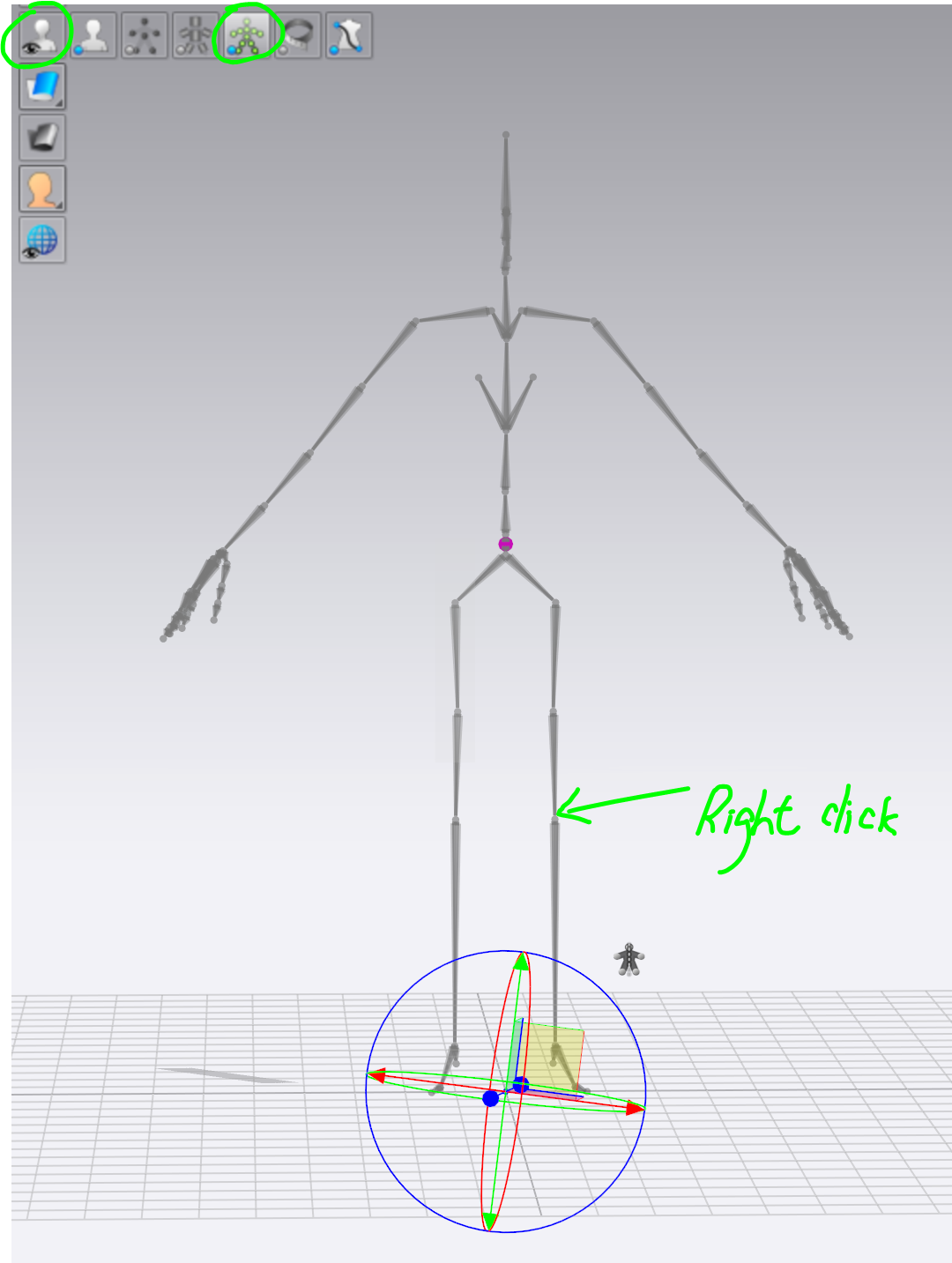
You can turn on "Show X-ray Joints" in 3D window > right click on the bond > Select All Faces > Move to Property Editor > You can now change the avatar's opacity to other values (eg. 100%) and you can see her/ him in the 3D window again.
 0
0
Comentarios