do anyone know which environment map is this and light angle

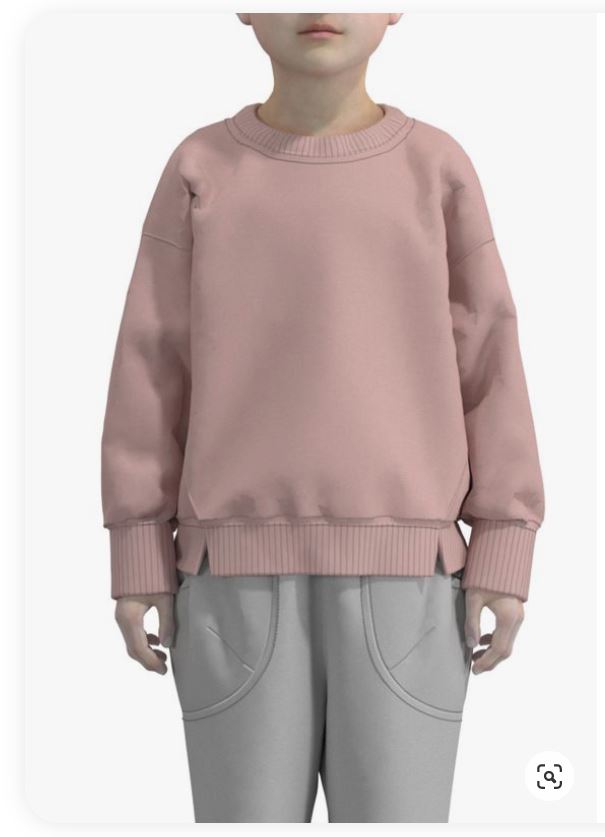
-
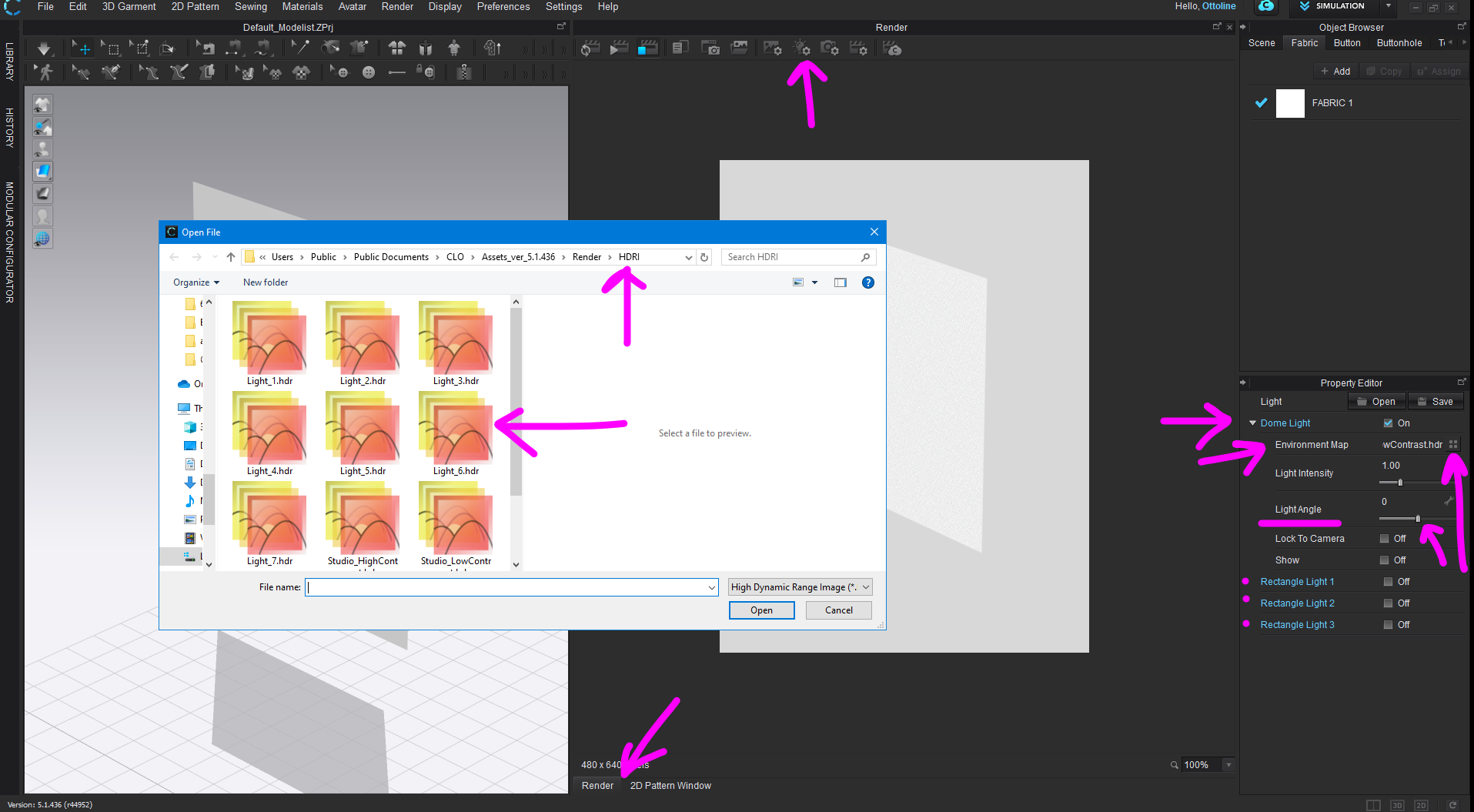
You can change the HDRI (free HDRI's > hdrihaven.com ) from the Render workspace > Render Tab > Light properties > Dome Light > Environment map > Load new HDRI (for new lighting map image ) or to rotate > Change light Angle using the slider (-180 <>0<>180 degrees) Adjust the angle of the light direction for the HDRI.
It's important to note that there are at least 3 additional spot lights in the scene and you need to switch these off in order to see the HDRI lighting results (you can toggle these on/off) .
You can also show the Rectangular lamp position, and move them using the 3D gizmo in the 3D scene window. And in the property editor you can adjust their intensity and width (size).
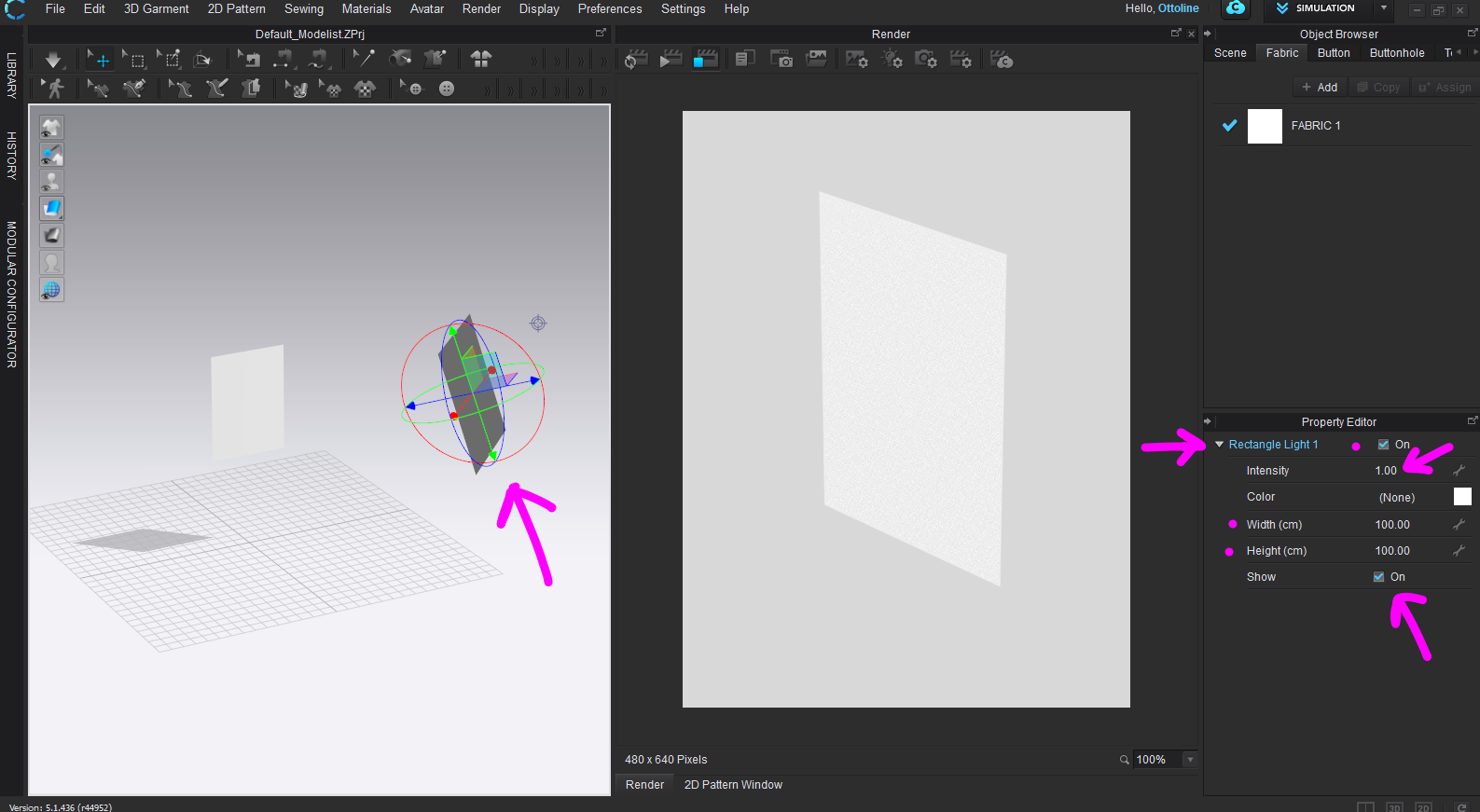
These lamps provide the additional scene lighting so you need to make sure you decide which is going to dominate lighting the object (avatar) within the scene. Switch either /or off to check each lighting effect (in isolation) as you work on your final render. Use the realtime render update to work on this live so you can check what elements (lamp and HDRI choice) position, angle of HDRI, Lamp size for shadow intensity, and gel color suit your final render.
0
Comentarios