I can't draw the shoulder tline for Avatar Tape Line

Hi All, I'm new to CLO and have just downloaded 5.1.
Am stuck at this crucial point of drawing the Shoulder Line in to Check for balance...
Why is my Avatar either not sitting on the axis, or why does it have a displaced shoulder line like this?
I've already tried moving avatar to Centre but it does not help.
Please help!
Thank you
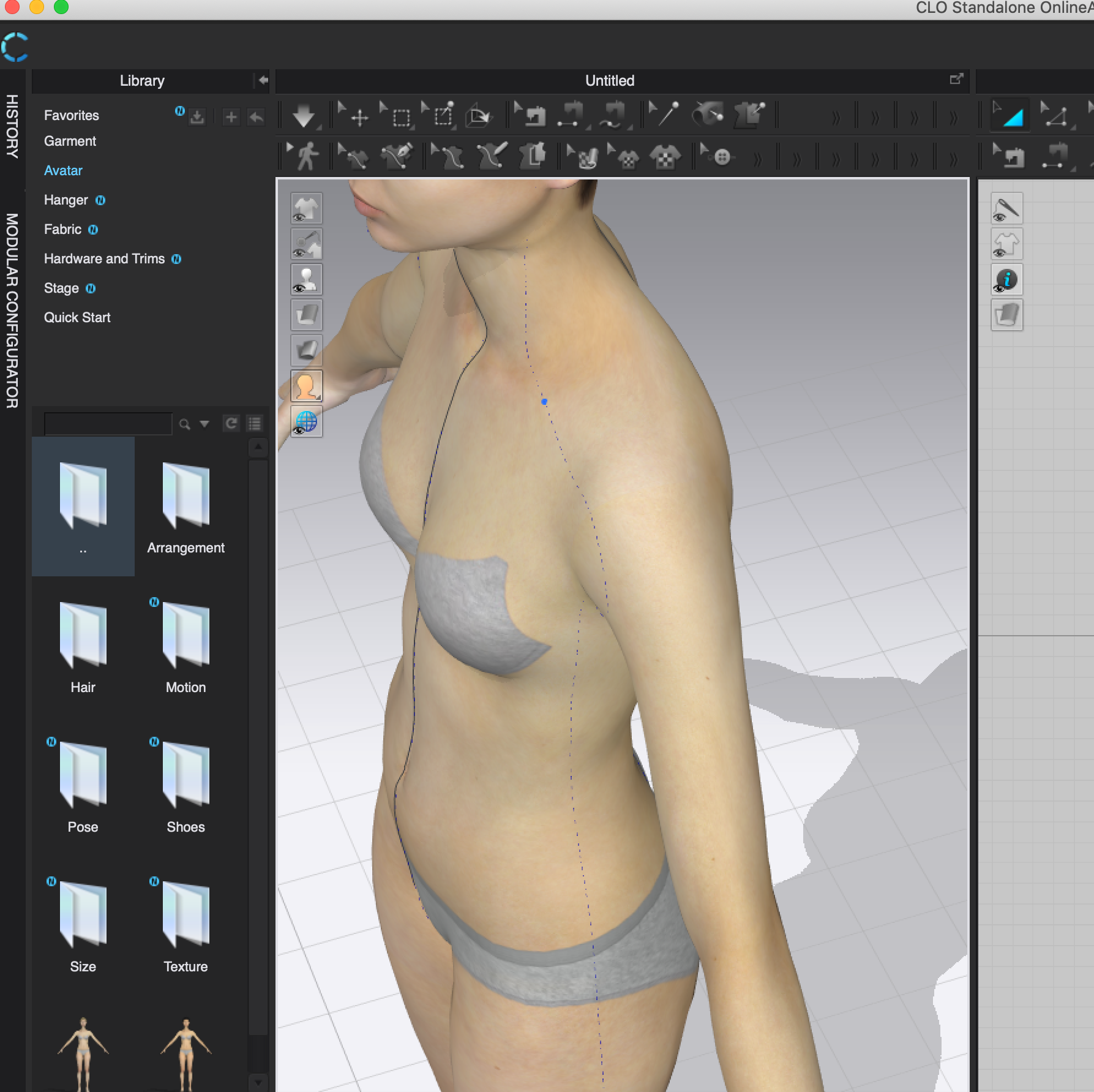
-
Hello jonmaxgoh. Not sure what you mean about not being able to find the shoulder line. Here I just drew a line wherever I'd like using the 3D Pen (Avatar) tool or I an see the measurement lines activating the button circled in the image.
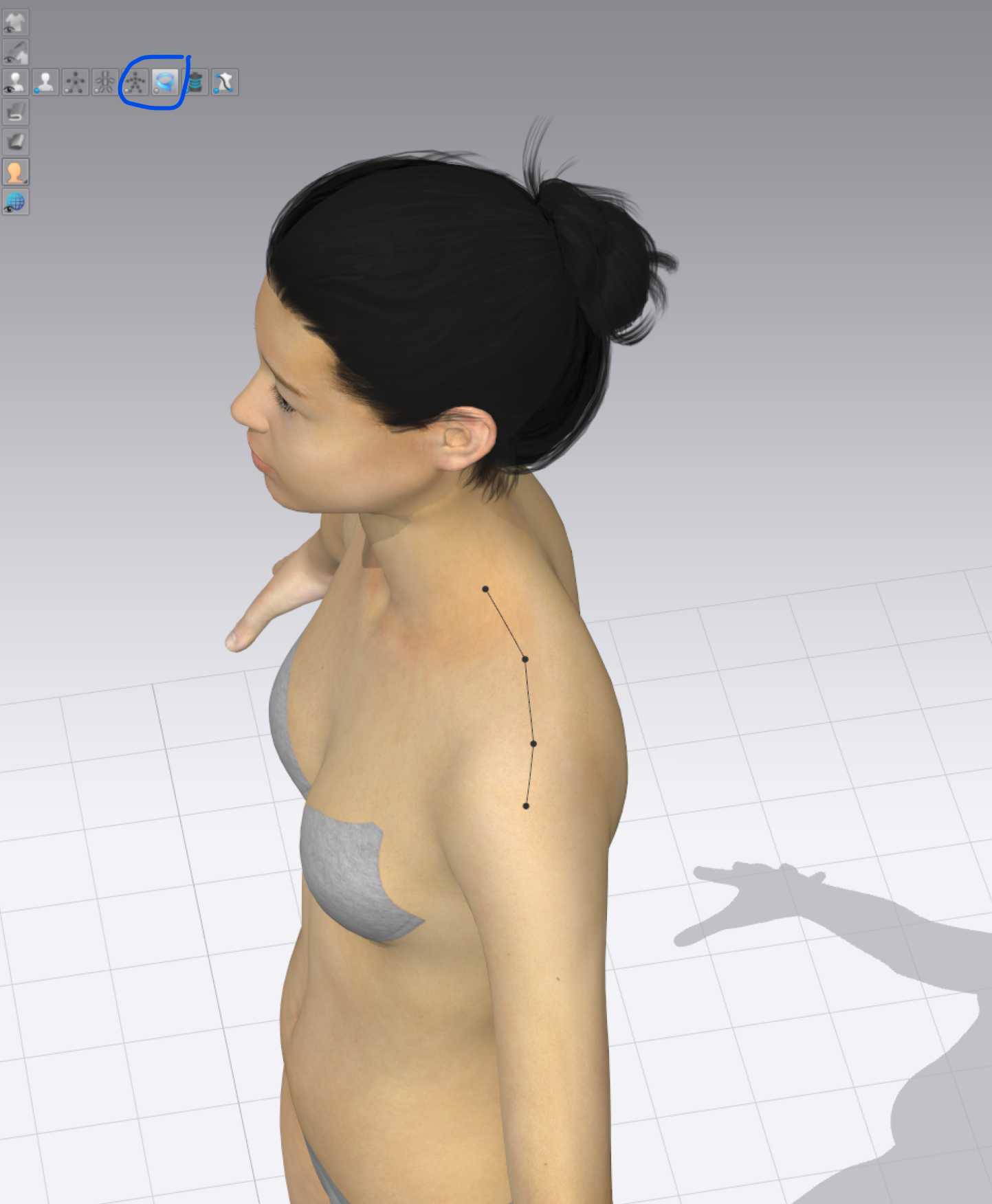 0
0 -
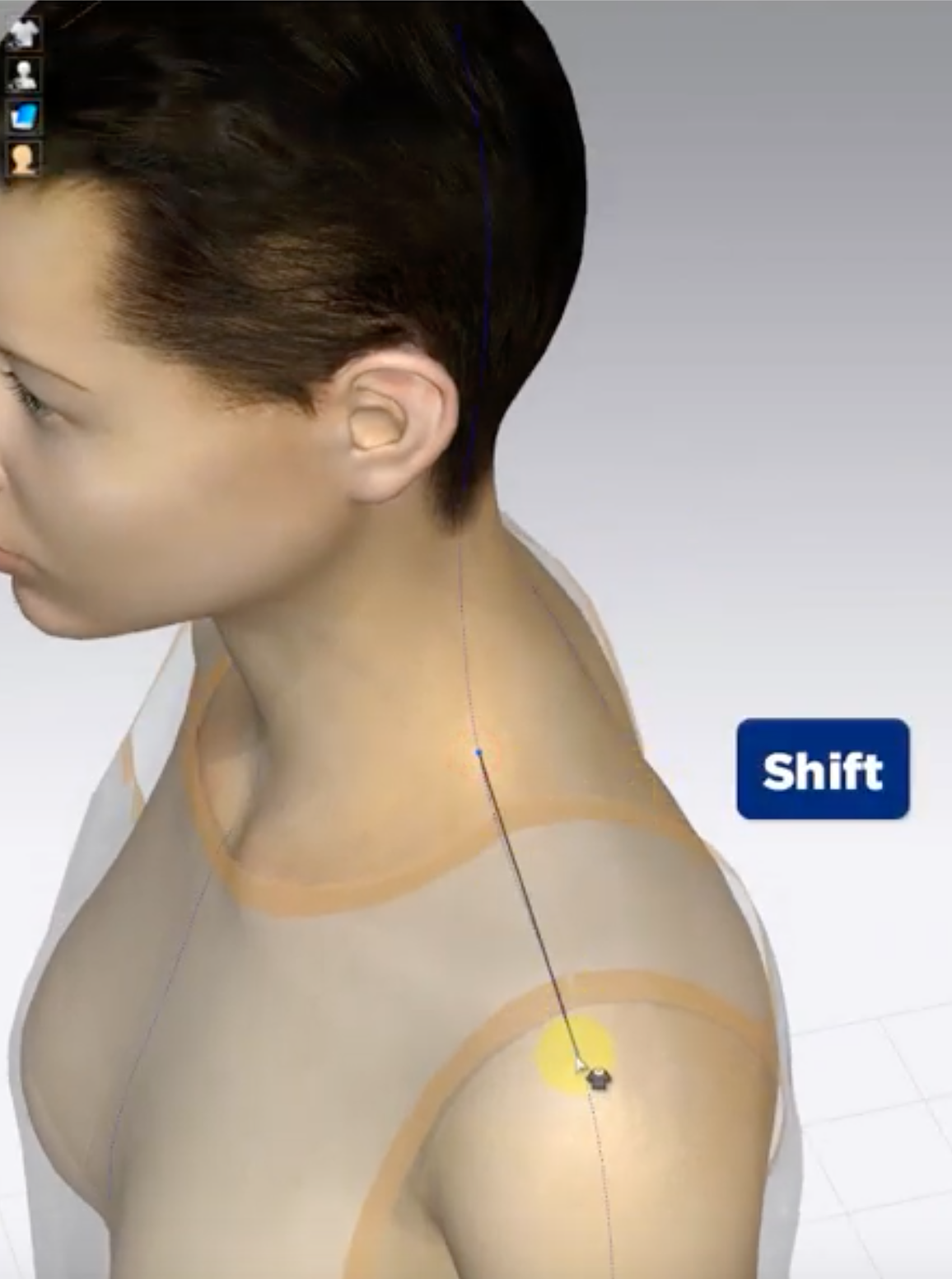
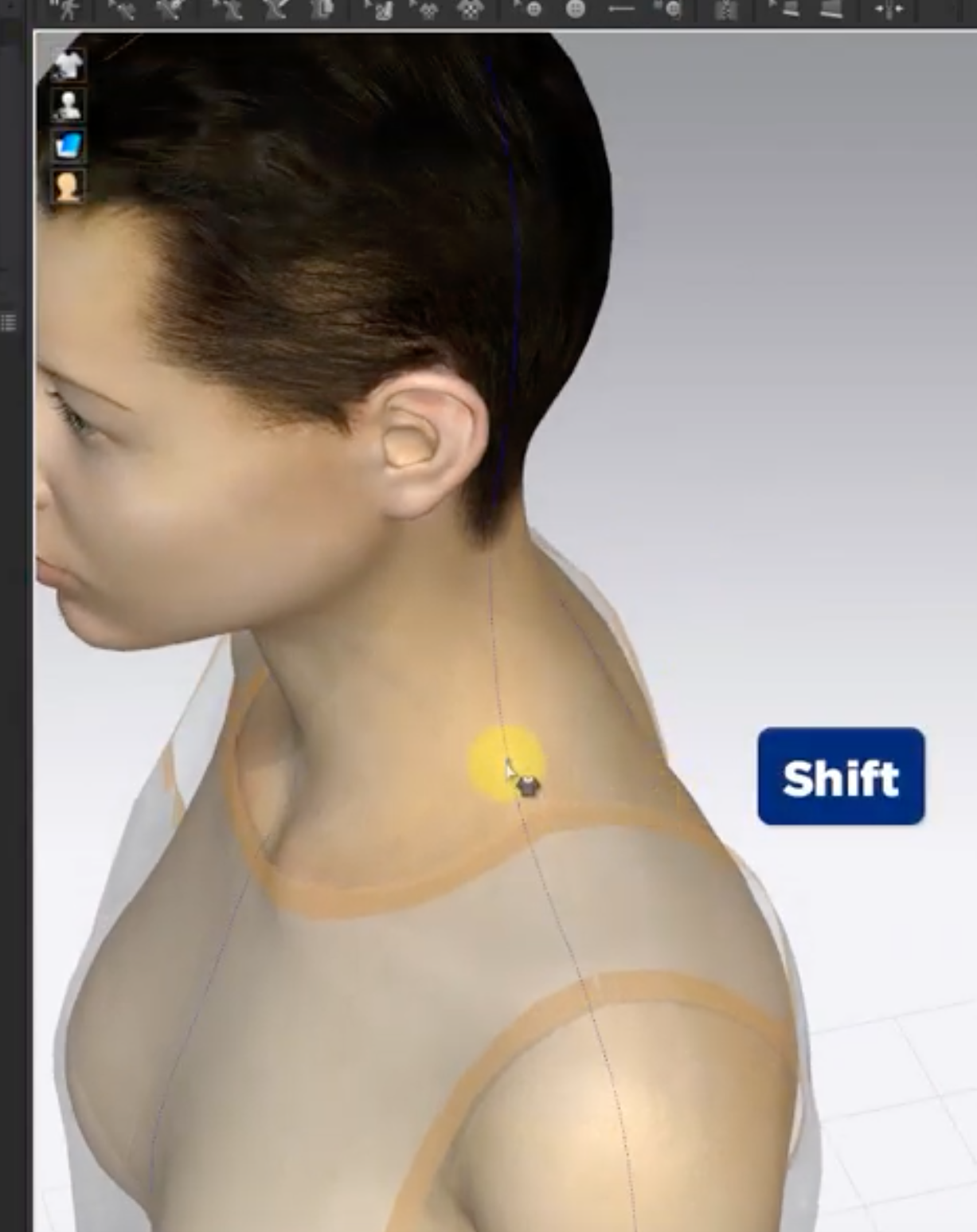 Hi Pablo, What I meant to say was, in the Tutorials, it says to hold the SHIFT Key down to reveal Avatar Tape Lines... so that I can trace the "true" shoulder line. However, this seems displaced on all the CLO 5.1 Avatars.0
 -
Jonmaxgoh the point on the avatar surface (where you click) when holding the shift button is the point at which the guide planes form, relative to the world space in the 3D window. This means you will only get bisecting guide planes that are parallel to the models orientation relative in world space. If you choose a new point on the avatar the surface guide plane will form at that point. Think of it as a temporary set of axis-planes on any click point you place on the avatars surface. Therefore when you want to break away from the world space planes you need to lay points using the line or the smooth arc feature when laying a avatar tape line.
The alternative way to lay lines using the bisecting planes guides is to temporarily re-orientate your avatar in the 3D world space using the gizmo so the guide lines form at a new angle.
Hope that helps.
0 -
I've found the same problem as the OP here. Clicking shift makes the start point jump to the guide line which is sitting too far forward and cannot be changed. To make matters more confusing, I am using the free trial of Clo 6.0 but the tutorial is for a previous version and the linear avatar tape tool has been updated and no longer works the same.
The advice given by ottoline is unfortunately not very clear to me. What gizmo do you mean?0 -
The dynamic (plane) guide lines will form where you place the mouse cursor on the avatar, when you hit shift the models (relative to world space x,y,z) temporary bisecting (hull) plane ray lines (dotted construction guide lines) will then appear on the avatar, that you can then lock onto when laying points or a curve. By using shift or not using shift and then laying a line point or a curve point you can then trace onto the avatar (black line). If the guide is sitting too far forward, you should show an image in your post so readers can help you, then it's a little easier to pin-point what may be going wrong. The linear avatar tape has a few modes make sure when you select the tape type you have the right icon selected, or use the menu instead to see the options.
0
Comentarios