How to rotate coordinates or an avatar by 45 degrees along the vertical coordinate?

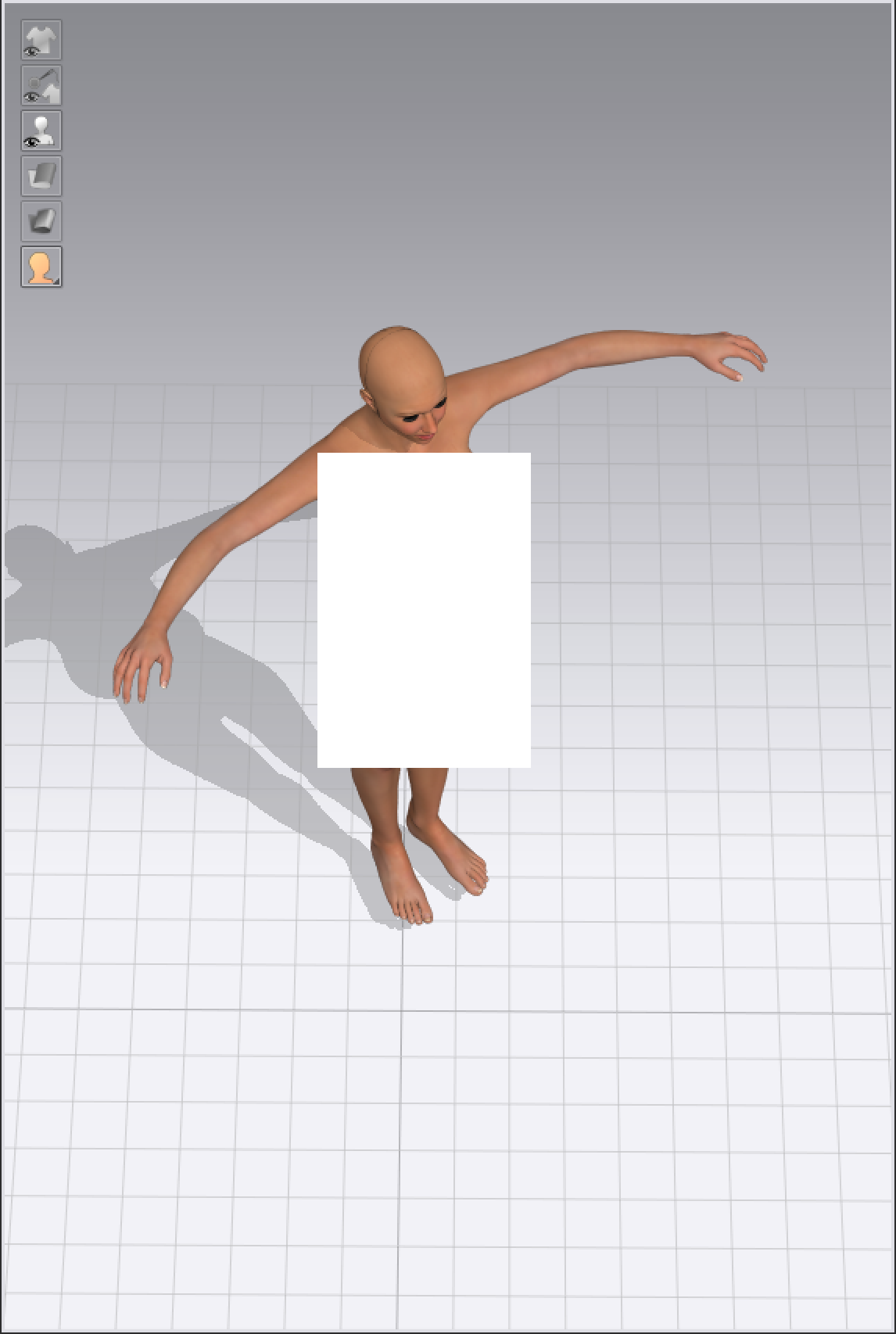
When I imported an avatar obj file downloaded from the Internet, it looks in the 45-degree direction as shown in the picture below.
The picture below is taken from a birds-eye view.
I want it to face the front along one of the horizontal axes.
When I import an obj file, coordinates can be inverted but cannot be rotated by an arbitrary degree.
How can I rotate the coordinates or an avatar by 45 degrees along the vertical coordinate?
-
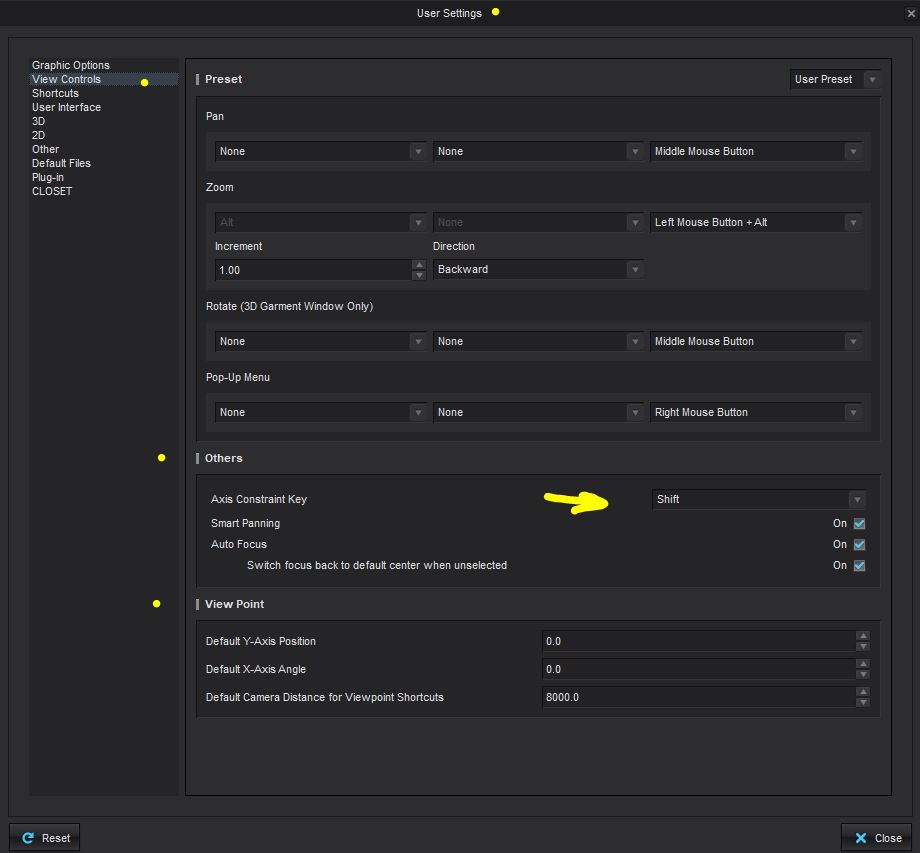
There is no rotate by arbitrary input, unless you use the 0-45 degree snap to increment angle feature on the gizmo. You can change it's shortcut in User settings.
If you want precise object placement the place to do that work is usually in your 3D asset modelling application where you usually create a models insertion point for parenting any complex rig within a scene. If that has been left out or done poorly then you may need to ask those providing the 3D model to set that correctly.
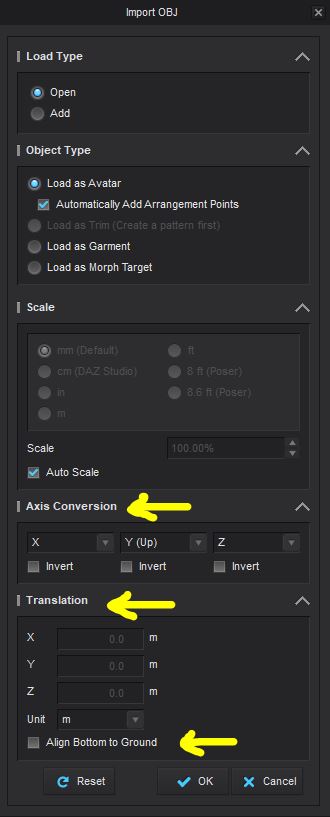
You also have one more control when importing any 3D model. You can set it's import axis conversion (swizzle axis) for (x,y,z) between systems so the model imports correctly into the CLO3D front view position. In many export procedures with modelling apps that can be done once and set as a preset to re-use so all assets coming into CLO3D have their, scale, position and rig insertion (parented object) point set for correct viewing.
To quickly change the camera angle when you view in the 3D window, to make the avatar always appear front, top, side, view on ... at eye line - switch that using the keypad shortcuts whilst you work with other tools. (see last tip)
However if you want to change the avatars' position after you have it in the scene you can activate the avatar rigs insertion point on the model > by activating show x-ray joints view mode (Shift +X) > navigate to the avatars insertion point (blue dot) >
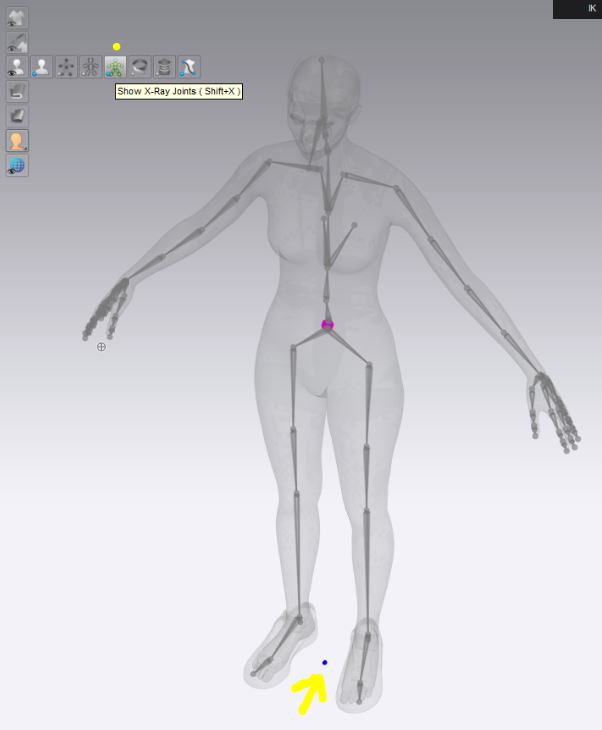
Click on the models insertion point (blue dot) in the 3D window to raise the move world 'Gizmo' then hit '5' on your number keyboard (shortcut for plan view). Now using the position gizmo's green rotate, pivot the avatar whilst keeping the shift key down and the avatar will snap to 45 degree increments as you rotate.
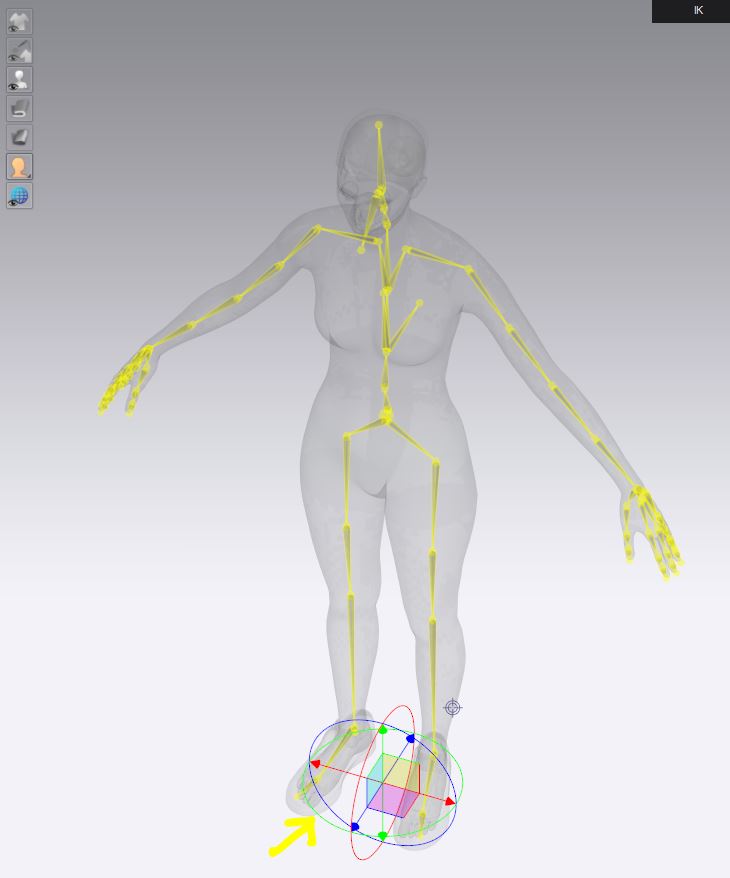
Keep shift button pressed as you rotate using the green pivot as the avatar snaps to 45 degree increments when you rotate.

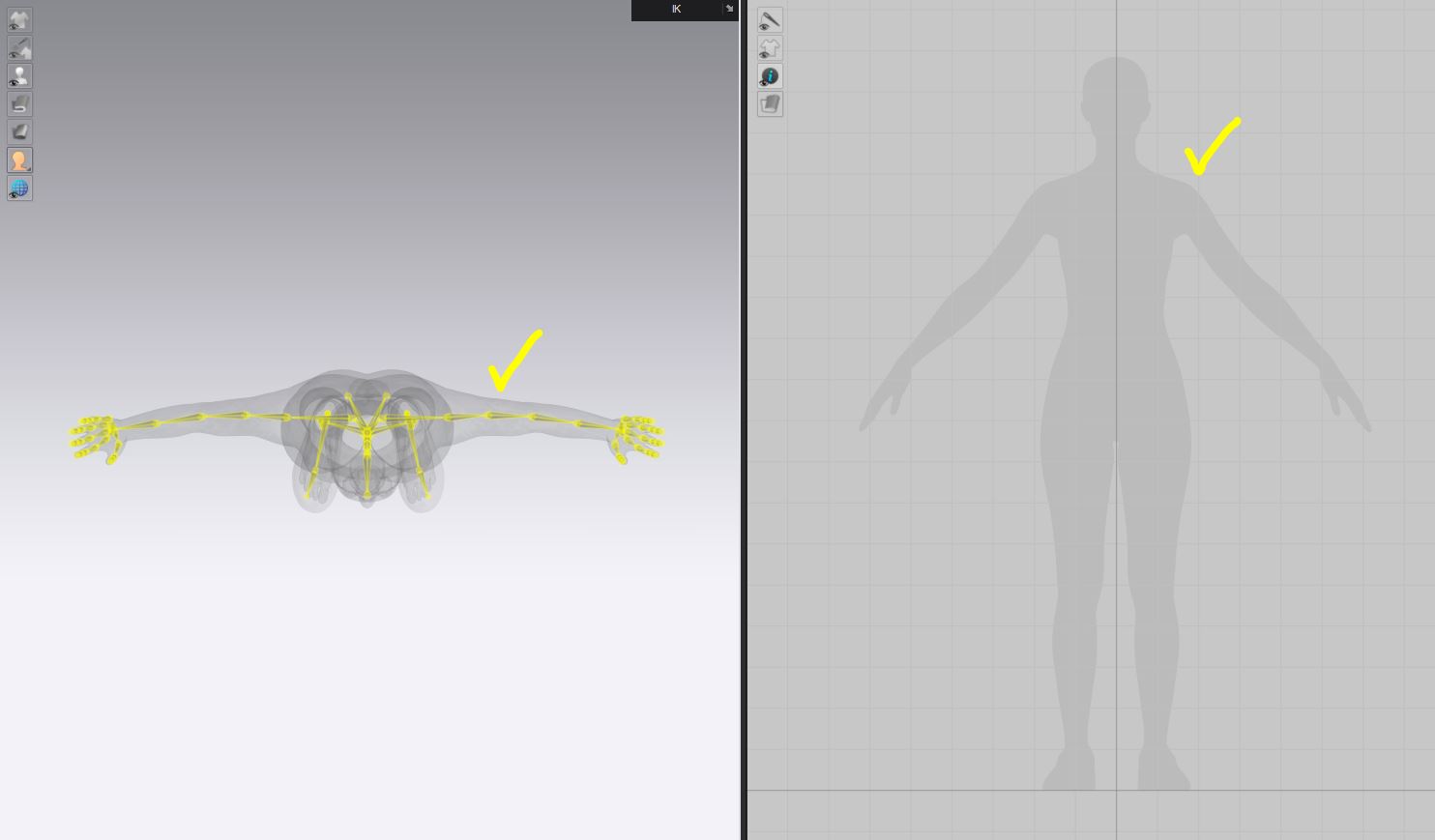
That's all there is to it. The avatar will now be front view on in the 3D window (2 on numeric keyboard) and in the 2D drafting window the silhouette will now be facing you with the head and feet on the drafting axis. If it is still not in the correct placement in the 2D drafting window use the gizmo to select and move into position from the 3D window.
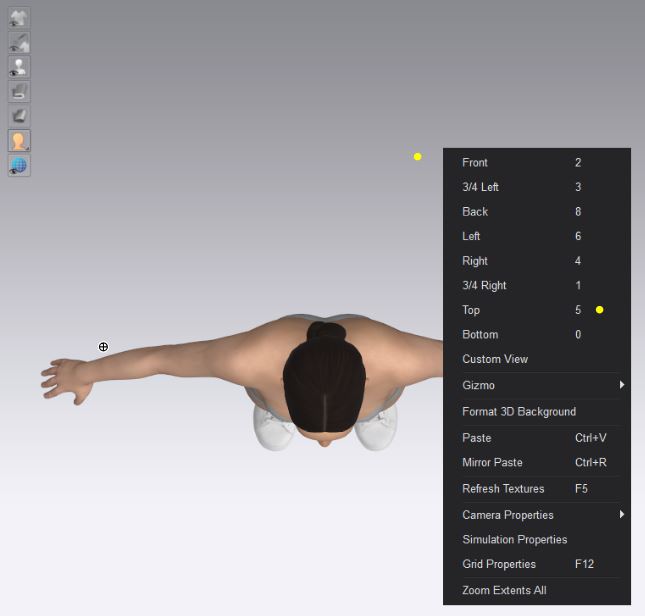
Right click anywhere off the avatar in the 3D window to raise view modal - popup.
You most probably need to re-read the section in the manual that has to do with how all the simple select and position tools work, - all their use is covered there in detail. Not something you should want to skip over as these are fundamental navigation tools to get around inside of CLO3D. Without knowing what all the view modes and selection tools do, it will be hard to progress through CLO3D.
Look in the manual for :
- 3D view modes
- gizmo (world/screen/local co-ordinates)
- inserting more than one props/avatar
- Gluing trim to a garment
- Units, grid, and translation move
All these topics have essential tool help.
-1
Comentarios