
New in version 2026.0
How to use the Calculator Notepad
This will allow you to add subtract or use any math operations you need with your point of measure.
Where to Find
-
The Calculator icon
within the POM (Point of Measure) Tab in the Object Browser will open up the Calculator.
- The Top Tool Bar_ 2D Menu _ Calculator Notepad will open up the Calculator Notepad
How to use the Calculator
-
Open up the calculator using the calculator icon
-
Using the Calculator icons next to each POMs the measurement is brought into the Calculator
-
You could also just put in any number into the calculator
-
You could also just put in any number into the calculator
-
Using the calculator you can then use any math operation you wish to find the calculation you need.
📝 Note: This Calculator works like any regular calculator, meaning you must follow standard calculation practices to achieve your goal. For Example; if you want to add before you divide you have to place the Addition operations within parentheses and then have the division outside of it. - To bring in another specific POM use the the calculator icons
- Once finished you then select equal to find the final calculation (you can also select Enter on the keyboard)
- You can then select Apply to add this calculation into the Calculator Notepad, this will also open the Calculator Notepad
✨Tip: using C on the keyboard will clear all calculations within the calculator. Using backspace will clear all calculations within the calculator
How to use the Calculator Notepad
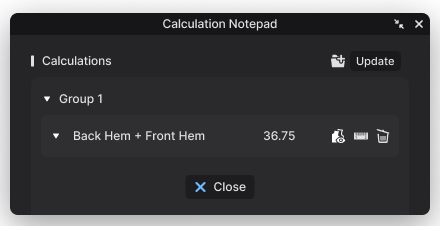
-
When a calculation has been added into notepad you will be able to see the POMs that were used to create the calculation.
✨Tip: you can organize the calculations by using the folder icon
at the top to create different folder groups
-
If the POM has grading applied to them you will be able to see the calculation across all graded sizes. The arrow button and the grading icon
will show or hide the graded size run.
✨Tip: To hide the Grading you can use the grading icon
-
If you want to apply the this new calculation to the POM list you can select the POM icon
and this will add it to the POM list in the Object Browser
📝 Note: If you edit the original POM you will need to open up the notepad and select the Update button within the Calculation Notepad to update the calculated POM within the Object Browser and within the Calculation Notepad
Watch Video
Comments