
Create curves in CLO similarly to how they are drawn in Adobe Illustrator. Bézier curves are curves that are controlled and shaped by editing the handles that come with them. The resulting curves are CLO-internal.
※Note: If a DXF is exported from CLO, Bézier curves are automatically converted to curves made out of Curve Points, a more common-across-software type of curve creation and control.
Location
Main Menu ▶ 2D Pattern ▶ Create ▶ Polygon or Internal Polygon/Line
2D Toolbar ▶  Polygon or
  Internal Polygon/Line
Operation
How to Create Bézier Curves
-
Follow the indicated guideline below:
Main Menu ▶ 2D Pattern ▶ Create ▶ Polygon or Internal Polygon/Line
2D Toolbar ▶ Polygon or Internal Polygon/Line
-
Click and drag on the 2D window. The curve is created as the blue handles appear.
→ Continue to drag to adjust curvature. When the desired curvature is achieved, release your mouse button.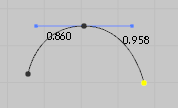
- To draw a straight line or change the direction of the curve, click on the point created last. Then, continue to draw a shape with either the Polygon tool or a shape or line with Internal Polygon/Line tool.
How to Cancel/Reverse in-between
-
To cancel all actions, hit the Esc key or Ctrl+Z (Windows) / Cmmd+Z (Mac) keys on the keyboard.
→ All the actions taken to create a shape with either the Polygon tool or a shape or line with the Internal Polygon/Line tool are undone.
-
To cancel the last step, hit the Delete or Backspace keys on the keyboard.
→ The point created last is undone.
Comments